
Expiry Details Guide
Your command center for viewing, managing, and collaborating on individual expiries
📊 What is the Expiry Details Page?
The Expiry Details page is your central hub for everything related to a single expiry. It's where you view complete information, take actions, collaborate with team members, track changes, and manage the entire lifecycle of an expiry from creation to completion.
Think of it as the "mission control" for each deadline-all the information and tools you need in one place.
Overview Section
The top section gives you an at-a-glance view of the most important expiry information.
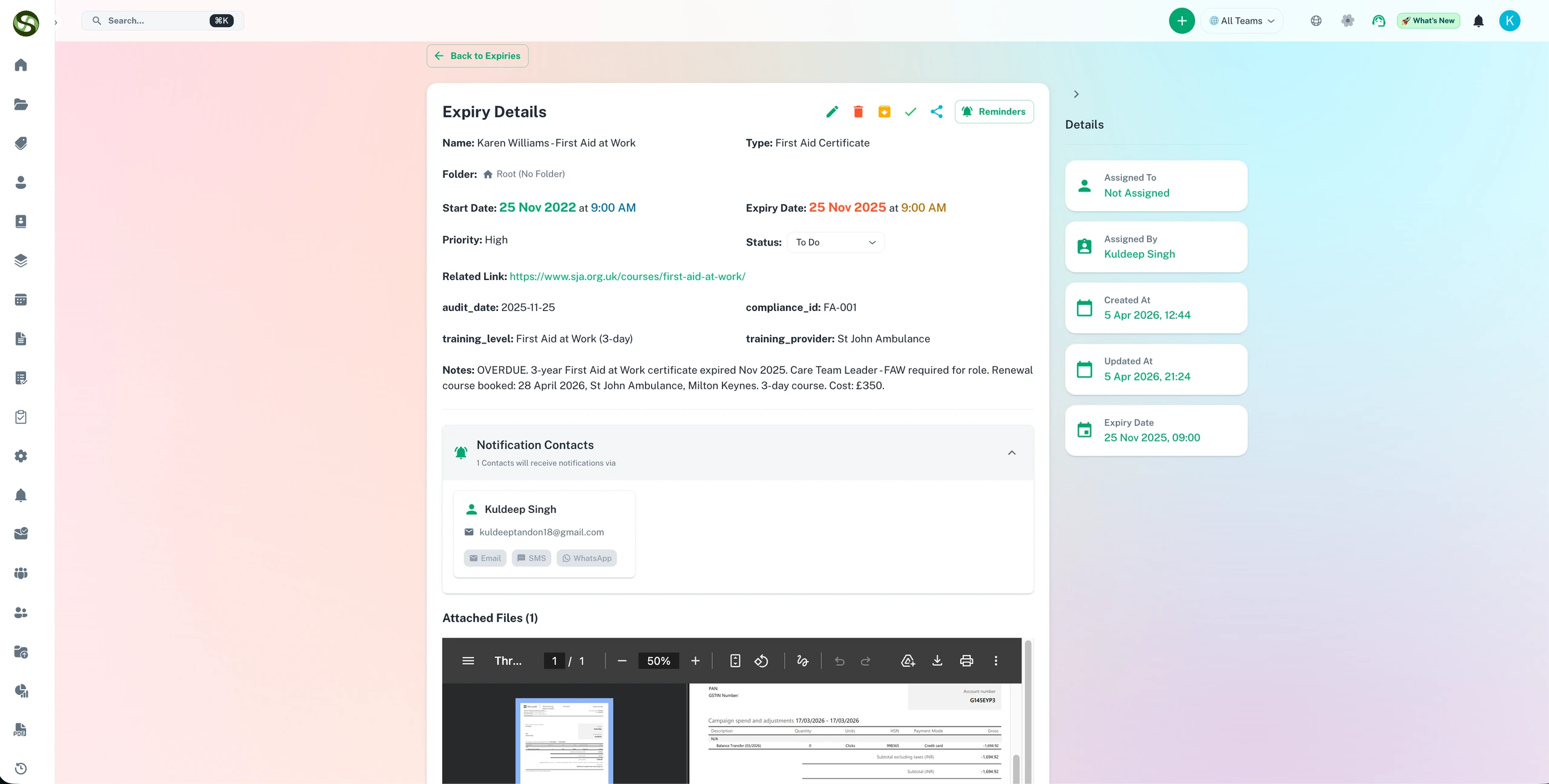
📋 Key Information Displayed
- Expiry Name: The title of your deadline
- Type & Category: Visual badges showing expiry classification
- Status Indicators: Visual cues for expired, active, done, or archived status
- Priority Level: High, medium, or low priority badge
- Key Dates: Start date and expiry date prominently displayed
- Time Remaining: Countdown showing days/hours until expiration
🎨 Visual Status Indicators
The page adapts its appearance based on expiry status:
- Green border & banner: Expiry marked as "Done" ✅
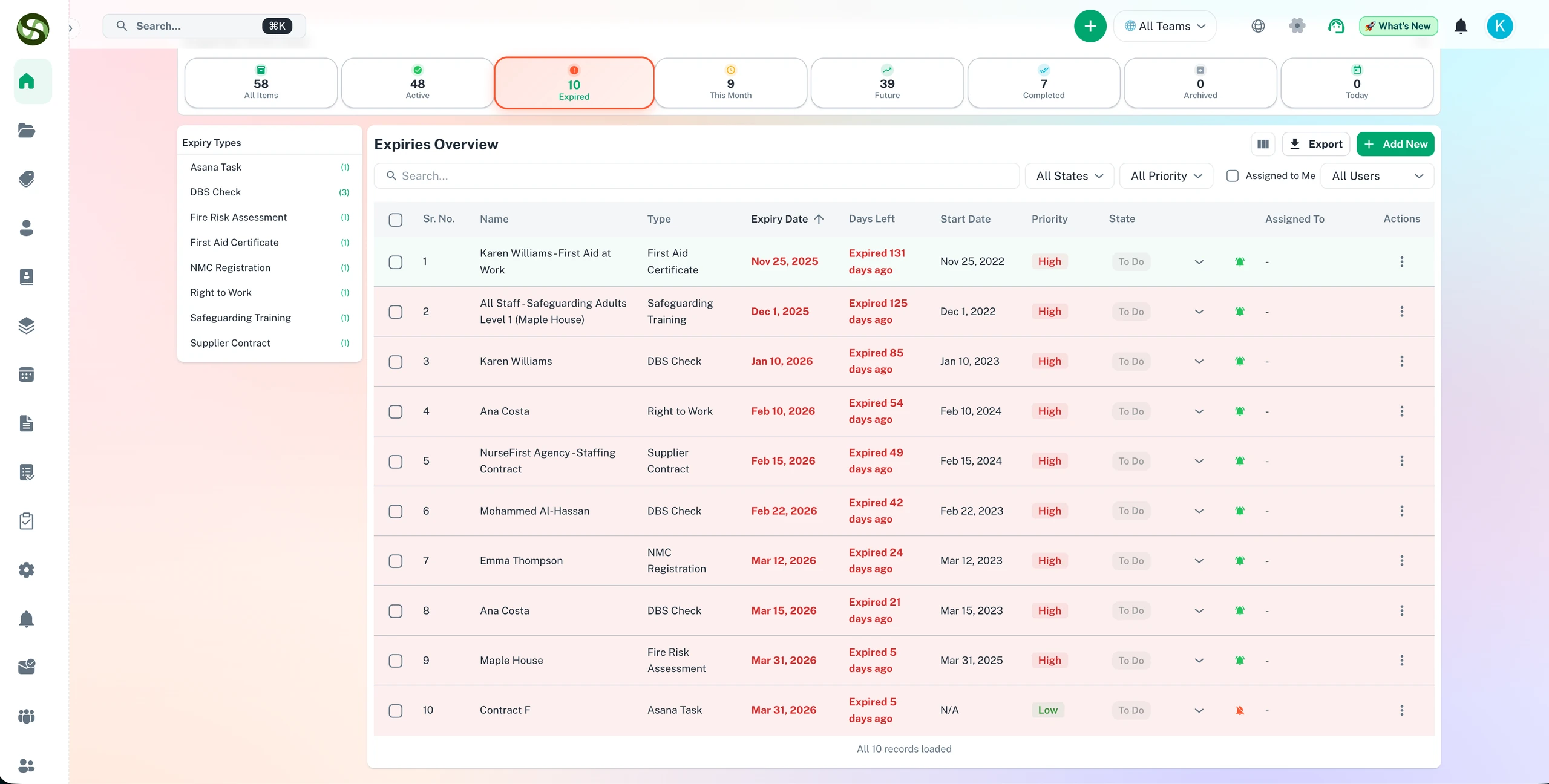
- Red highlights: Expired expiry requiring immediate attention ⚠️
- Yellow/Orange tint: Archived expiry 📦
- Standard appearance: Active, upcoming expiry
Action Buttons & Operations
The action toolbar at the top right provides quick access to all operations you can perform on the expiry.
✏️ Edit
Opens the expiry form with all current values pre-filled, allowing you to modify any field.
- When to use: Update dates, change reminders, add contacts, modify details
- Permissions: Only team members and owners can edit
- Tip: All changes are tracked in the activity feed
✅ Mark as Done
Marks the expiry as completed. This is used when the renewal is finished or the deadline has been met.
- Options: Add completion notes and upload proof of completion
- Effect: Stops all future reminders for this item
- Recurring expiries: Automatically creates the next occurrence
- Visual indicator: Expiry shows green "Completed" banner
🔄 Undo Mark as Done
If you marked something as done by mistake, you can undo it. This reopens the expiry and reactivates reminders.
📦 Archive
Move the expiry to the archive without deleting it. Useful for decluttering your active list while preserving records.
- When to use: Completed expiries you want to keep for reference
- Effect: Hidden from main dashboard but accessible in archive view
- Reversible: Can be unarchived anytime
🗑️ Delete
Permanently removes the expiry from the system. This action cannot be undone.
🔗 Share
Generate a shareable link to this expiry. Perfect for sending detailed information to external stakeholders or team members who don't have full system access.
- Secure links: Password-protected or time-limited options
- Read-only: Recipients can view but not modify
- Revocable: Disable shared links at any time
➕ Additional Actions Menu
Click the "More" menu (three dots) for additional operations:
- Duplicate: Create a copy with all settings
- Export: Download expiry details as PDF
- Move to Folder: Relocate to different folder
- Change Owner: Reassign responsibility
Details Tab
The Details tab shows all core information about the expiry in an organized, easy-to-read format.
📝 Core Information
- Description: Full expiry description with formatting preserved
- Dates: Start date, expiry date, and any time specifications
- Organization: Folder location, team/department assignment
- Tags: All assigned tags displayed as clickable chips
- Priority: Priority level with visual indicator
👥 People & Contacts
View everyone associated with this expiry:
- Assigned To: The person responsible for this expiry
- Created By: Who initially created the expiry
- Contacts: All notification recipients with their contact methods
- Stakeholders: Anyone who has viewed or interacted with this expiry
⏰ Reminder Schedule
Complete list of all configured reminders showing:
- Timing: When each reminder will be sent
- Channels: Which notification methods are enabled
- Status: Whether reminders have been sent or are pending
- Recipients: Who receives each reminder
📊 Custom Field Data
If you're using custom templates, all template fields and their values display here in a structured format.
Examples: Policy numbers, vendor information, cost details, compliance requirements, etc.
Documents Tab
Centralized document management for all files attached to your expiry.
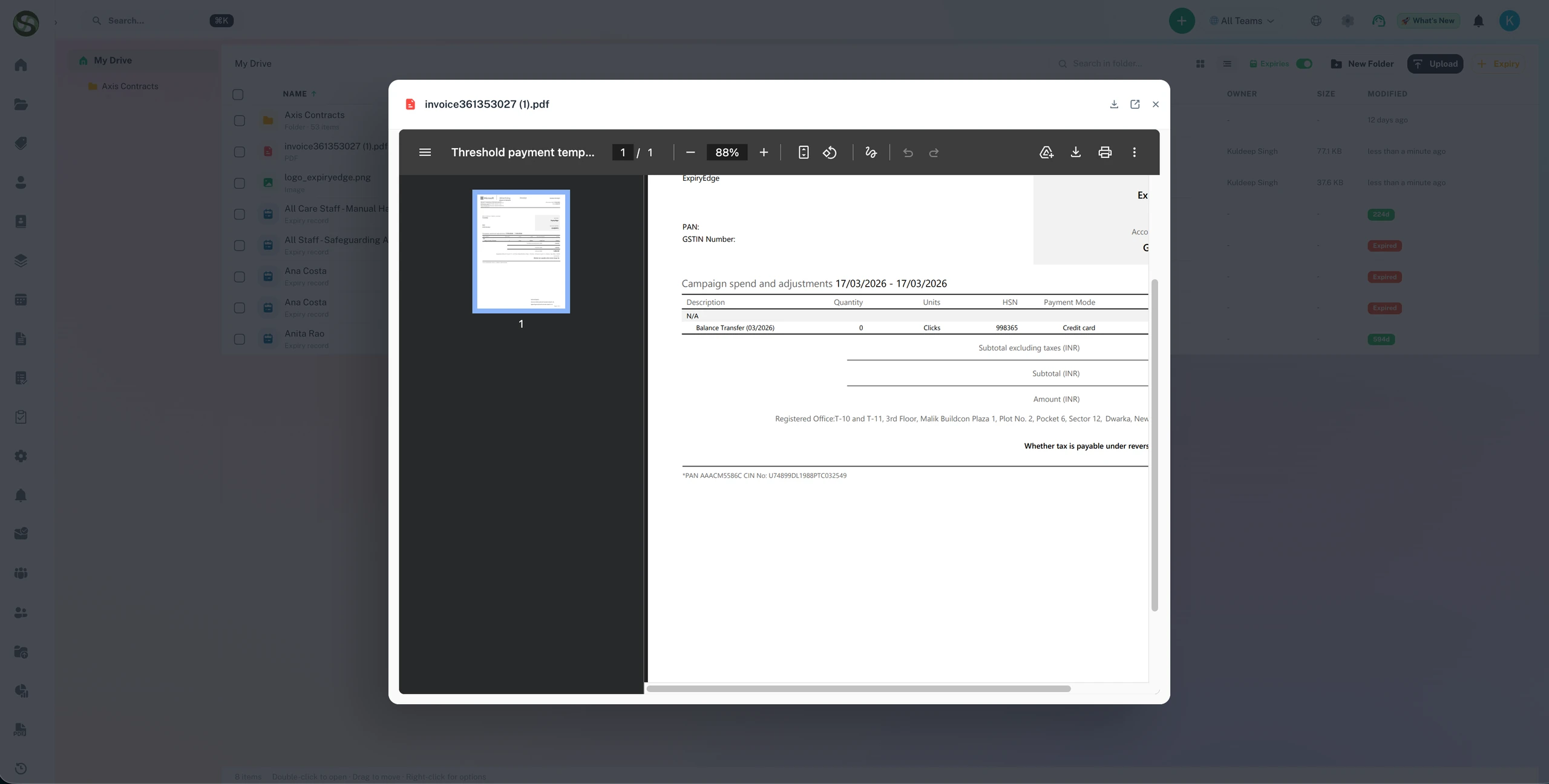
📄 Document List
All attached documents are displayed with:
- File name: Original or custom name
- File type: Icon showing PDF, Word, Excel, image, etc.
- File size: Document size in KB/MB
- Upload date: When the document was added
- Uploaded by: Team member who added it
👁️ Preview & View
Click any document to open a preview viewer:
- PDF preview: View documents directly in browser
- Image preview: Full-size image display with zoom
- Office files: Preview Word, Excel, PowerPoint documents
- Navigation: Scroll through multi-page documents
📥 Download Options
Download documents individually or in bulk:
- Single download: Click download icon on any file
- Bulk download: Select multiple files and download as ZIP
- Download all: One-click to download all expiry documents
➕ Adding New Documents
Upload additional documents anytime from the details page:
- Quick upload: Drag and drop files onto the documents section
- Version control: Upload updated versions of existing documents
- Organize: Add descriptive names to keep everything organized
🗑️ Managing Documents
- Rename: Click file name to edit
- Delete: Remove outdated or incorrect files
- Share: Generate shareable links for specific documents
Comments & Collaboration
Real-time collaboration through comments and discussions directly on the expiry.
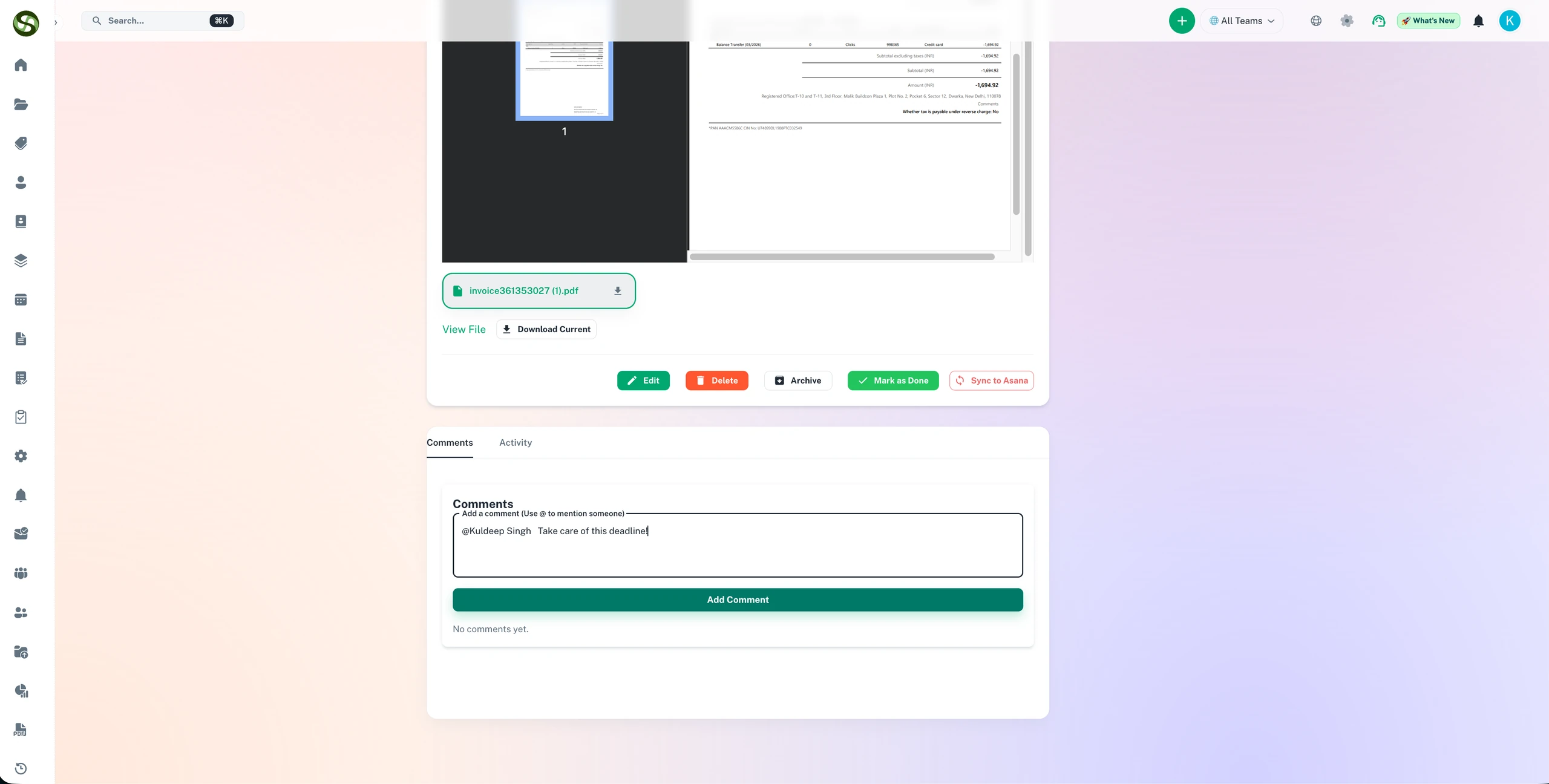
💬 Adding Comments
Leave notes, questions, or updates for your team:
- Rich text: Format comments with bold, italics, lists, and links
- Mentions: Use @mentions to notify specific team members
- Attachments: Add images or files to comments
- Timestamps: All comments show date, time, and author
🔔 Comment Notifications
Team members receive notifications when:
- They're mentioned in a comment
- Someone replies to their comment
- New comments are added to expiries they're watching
🧵 Comment Threads
Organize discussions with threaded replies:
- Reply to comments: Keep conversations organized
- Collapse threads: Hide long conversations to reduce clutter
- Mark as resolved: Close out completed discussions
💡 Use Cases for Comments
- Status updates: "Renewal application submitted on 1/15"
- Questions: "@John, do we have the updated certificate?"
- Reminders: "Don't forget to include the inspection report"
- Documentation: "Payment confirmation number: XYZ123"
- Coordination: "I'll handle the vendor follow-up next week"
Activity History
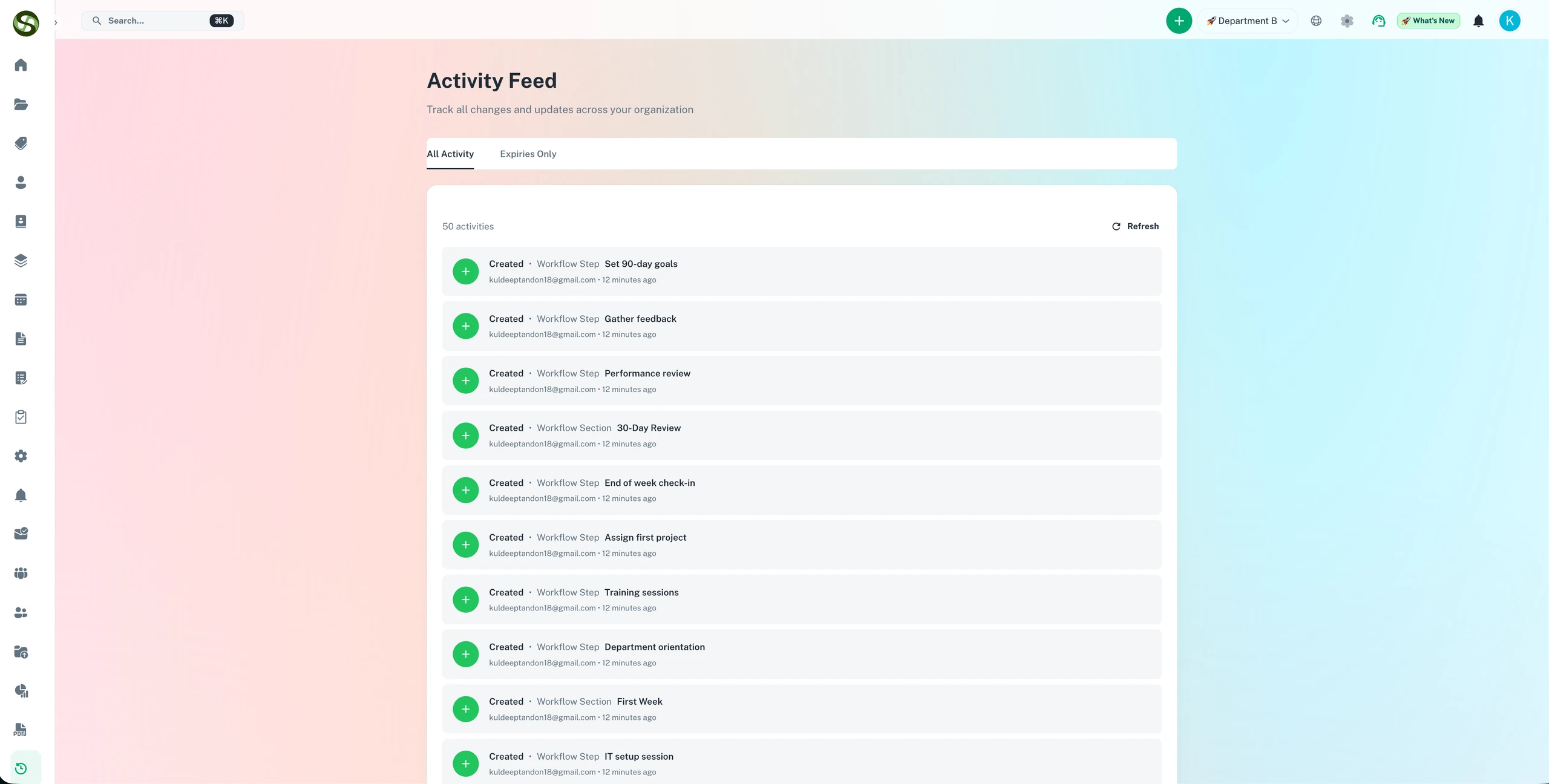
Complete chronological log of everything that has happened with this expiry.
📜 What's Tracked
The activity feed automatically records:
- Creation: When and by whom the expiry was created
- Edits: All field changes with before/after values
- Status changes: When marked done, archived, or reactivated
- Document actions: Files uploaded, downloaded, or deleted
- Comments: All comments and replies
- Reminders sent: Log of all notification deliveries
- Assignments: Ownership or contact changes
- Shares: When share links were generated or revoked
🔍 Activity Feed Features
- Chronological view: Most recent activity at the top
- Filtering: Show only specific types of activities
- Search: Find specific events or changes
- Export: Download activity log for audits
📊 Why Activity History Matters
- Accountability: See who did what and when
- Audit trail: Compliance and regulatory documentation
- Troubleshooting: Understand what changed if something breaks
- Knowledge transfer: New team members can see the full history
Metadata Sidebar
The right sidebar provides quick access to important metadata and navigation.
📊 Quick Stats
- Days remaining: Countdown to expiration
- Status: Current state (Active, Expired, Done, Archived)
- Comments count: Number of team discussions
- Attachments count: Total documents attached
- Views: How many times this expiry has been accessed
🔗 Quick Links
- Parent folder: Navigate to containing folder
- Related expiries: Other items in same category
- Team page: View all team members
- Type overview: See all expiries of this type
📅 Date Information
- Created: Original creation date and creator
- Last modified: Most recent edit and editor
- Last viewed: When you last accessed this expiry
Checklist Management
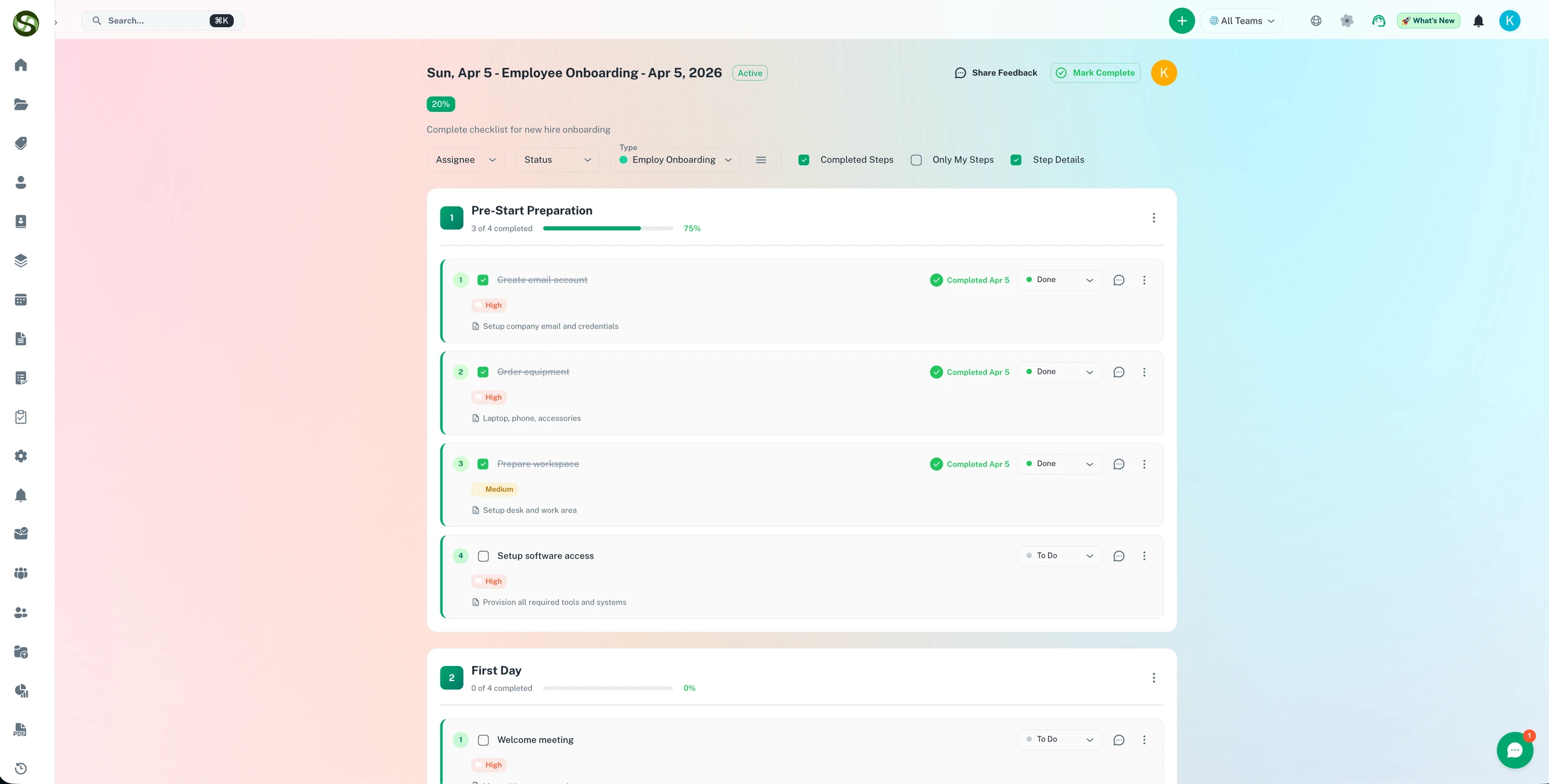
If your expiry has checklist items, you can track and complete them directly from the details page.
✅ Completing Checklist Items
- Click to check: Mark items complete as you finish them
- Progress bar: Visual indicator of completion percentage
- Required items: Some items may be mandatory before marking expiry as done
- Timestamps: System tracks when each item was completed
📝 Checklist Best Practices
- Complete items in order as you work through the renewal process
- Use checklist as your to-do list for this expiry
- Add comments to document completion details
- Review checklist before marking entire expiry as done
Mobile Experience
The expiry details page is fully optimized for mobile devices.
📱 Mobile-Optimized Features
- Responsive layout: Adapts perfectly to phone and tablet screens
- Touch-friendly: Large buttons and tap targets
- Swipe gestures: Swipe left/right to navigate between expiries
- Collapsible sections: Expand only what you need to see
- Mobile actions: Streamlined action menu for small screens
📲 Mobile-Specific Capabilities
- Camera upload: Take photos and upload directly from mobile
- Voice comments: Use speech-to-text for comments
- Push notifications: Receive alerts on your mobile device
- Offline mode: View cached expiry details without internet
Best Practices & Tips
✅ Do's
- Review regularly: Check expiry details weekly to stay on top of deadlines
- Use comments: Document all actions and updates in comments
- Complete checklist: Work through checklist items systematically
- Upload proof: Always attach completion certificates or proof documents
- Mark as done promptly: Update status as soon as renewal is complete
- Check activity log: Review history when taking over an expiry
- Mention teammates: Use @mentions to involve the right people
❌ Don'ts
- Don't mark done prematurely: Wait until renewal is 100% complete
- Don't delete without archiving: Archive first to preserve records
- Don't ignore comments: Respond to @mentions and questions
- Don't skip documentation: Add comments about significant changes
- Don't share links carelessly: Consider security before sharing
💡 Pro Tips
- Bookmark important expiries: Use browser bookmarks for quick access
- Export to PDF: Create a record of expiry details for offline reference
- Use keyboard shortcuts: Learn shortcuts to navigate faster
- Set up notifications: Get alerted when comments are added
- Organize documents: Use clear, descriptive file names
Common Workflows
🔄 Renewal Process Workflow
- Receive reminder notification
- Open expiry details page
- Review all information and requirements
- Download necessary documents
- Complete checklist items as you work
- Add comments documenting progress
- Upload completed forms or new certificates
- Mark expiry as done with completion notes
- Verify new occurrence is created (if recurring)
👥 Team Collaboration Workflow
- Assignee receives notification
- Opens details page and reviews requirements
- Adds comment: "@colleague, can you handle the paperwork?"
- Colleague receives mention notification
- Colleague replies and uploads required documents
- Team discusses details in comment thread
- Final approver reviews activity history
- Marks expiry as done after verification
🔍 Audit Review Workflow
- Navigate to archived expiries
- Open specific expiry details
- Review activity history for compliance
- Check all comments and documentation
- Download documents and activity log
- Export details page as PDF for audit file
Troubleshooting & FAQ
Q: I can't see certain action buttons. Why?
A: Permissions! You might not have edit or delete rights. Check with your administrator or team owner if you need access.
Q: How do I find an old comment?
A: Use the search function in the comments section, or scroll through the activity history which includes all comments chronologically.
Q: Can I undo marking an expiry as done?
A: Yes! Click the "Undo Mark as Done" button in the action toolbar. This reopens the expiry and reactivates reminders.
Q: Why can't I download a document?
A: Check your browser's pop-up blocker. Also verify you have download permissions for this expiry's folder. Contact your administrator if issues persist.
Q: How do I see who viewed this expiry?
A: Check the metadata sidebar for view count, and review the activity history for specific team members who have taken actions.
Q: Can I customize which tabs are visible?
A: Tabs appear based on available content. If there are no documents, the Documents tab won't show. All relevant tabs display automatically.
🎯 Master Your Expiry Management
You now know everything about viewing and managing expiry details. Next, learn about creating powerful workflows to automate your processes!