
Expiry Form Guide
Master the expiry form to create, configure, and manage all your important deadlines
📋 What is the Expiry Form?
The Expiry Form is your central hub for creating and managing important deadlines, certifications, licenses, contracts, and any time-sensitive items. Think of it as a smart deadline manager that not only tracks when things expire but also helps you stay ahead with automated reminders and team collaboration.
Basic Information
Every expiry starts with the essentials. This section captures the core details that identify your deadline.
📝 Expiry Name (Required)
Give your expiry a clear, descriptive name that instantly tells you what it's about.
- Good: "John Doe's Medical License" or "Q1 Tax Filing Deadline"
- Avoid: "License 1" or "Important Thing"
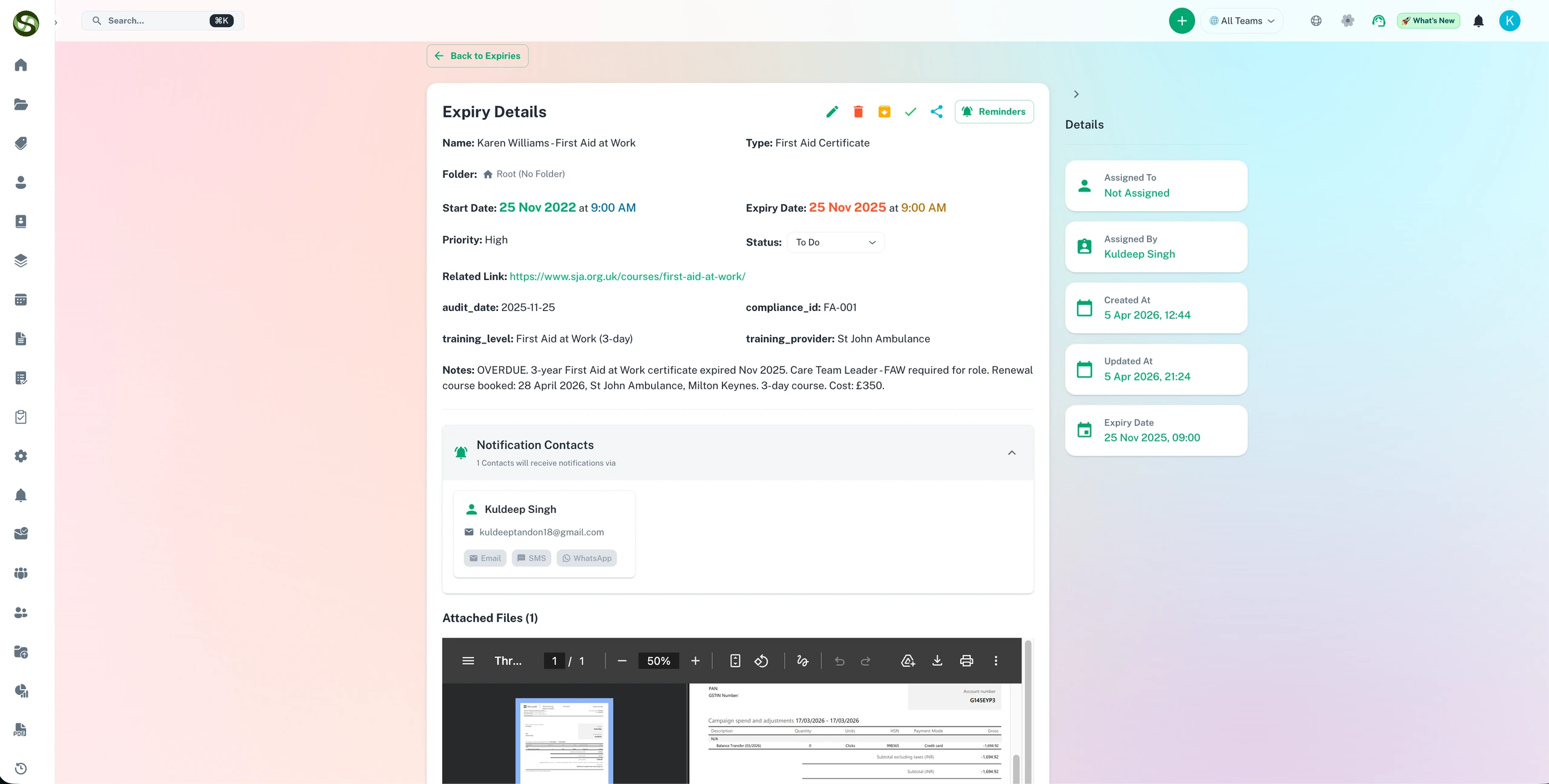
🗂️ Type Selection
Choose or create a type to categorize your expiry. Types help you organize and filter items later.
- Use existing types: Select from pre-defined categories like "License," "Certificate," "Contract"
- Create new types: Click the "+" button to add custom types specific to your needs
- Why it matters: Types enable quick filtering, reporting, and dashboard organization
📝 Description
Add context and details that will be helpful later. What does this expiry cover? Why is it important? What actions need to be taken before the deadline?
Example: "Annual safety certification required for all construction site managers. Must complete 8-hour refresher course and pass exam. Renewal applications due 30 days before expiration."
Date Management
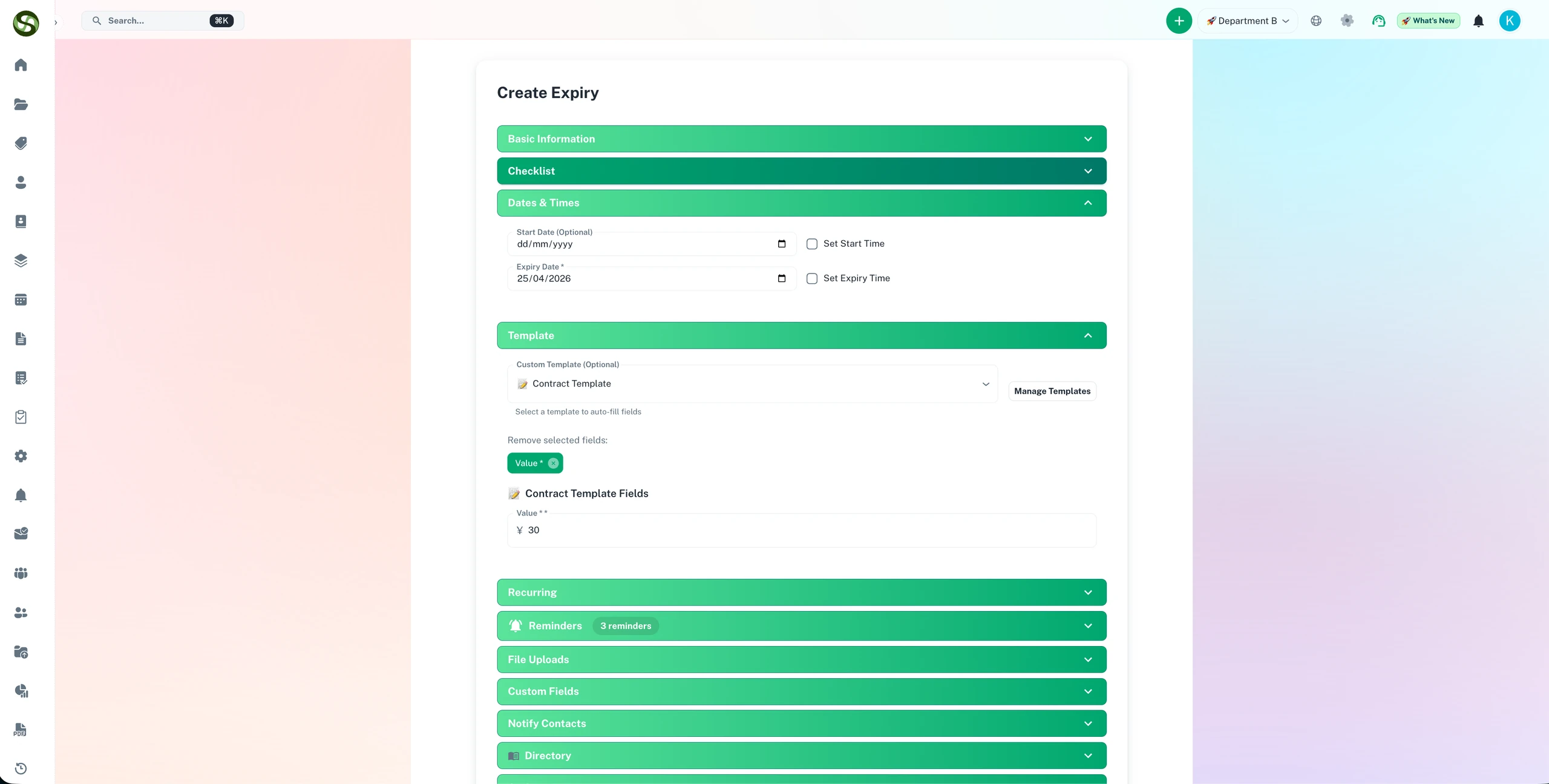
Dates are the heart of expiry tracking. ExpiryEdge gives you flexible options to capture exactly when things start and when they expire.
📅 Start Date (Optional)
When did this item become active? This is useful for tracking how long something has been valid and for calculating renewal cycles.
- Contract effective date
- License issue date
- Certification award date
⏰ Expiry Date (Required)
The most critical field-when does this item expire? The system uses this to calculate all reminders and alerts.
🕐 Time Settings
Need precision? Enable time settings to track deadlines down to the hour and minute.
- Enable Start Time: Track when something became active at a specific hour
- Enable Expiry Time: Perfect for same-day deadlines like "5:00 PM submission cutoff"
- Timezone Support: Select your timezone to ensure accurate reminders across regions
Organization & Categorization
📁 Folders
Organize expiries into folders for better structure and access control. Folders work like filing cabinets-keeping related items together.
- Department folders: HR, Legal, Operations, Finance
- Project folders: Group expiries by specific projects or clients
- Location folders: Organize by office, facility, or geographic region
🏢 Teams/Departments
Assign expiries to specific teams or departments. This determines who can view and manage the item.
Use case: Assign a contractor license to the "Construction Team" so all team members are notified and can track renewal status.
🏷️ Tags
Add flexible tags for cross-cutting categorization. Unlike folders and types, you can add multiple tags to one expiry.
- Example tags: "High Priority," "Regulatory," "Annual," "Needs Review"
- Tip: Use tags for temporary categorization like "Q1-2026" or "Audit-Ready"
Reminder Configuration
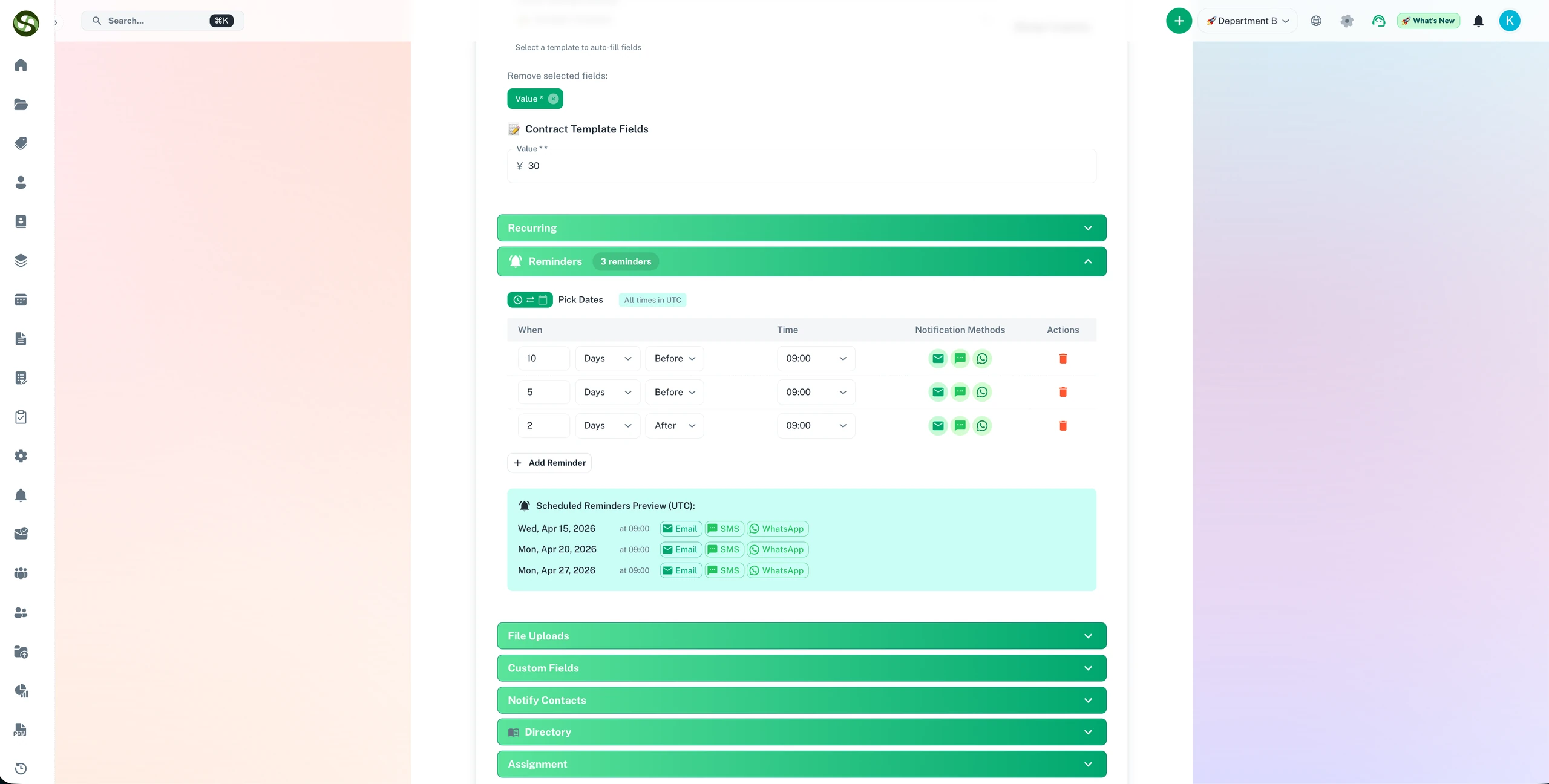
Never miss a deadline with smart, automated reminders. Set up multiple reminder points to give you and your team plenty of advance notice.
⏰ Adding Reminders
Create a reminder schedule that makes sense for your timeline. You can add multiple reminders at different intervals.
- 90 days before: Initial heads-up to start planning renewal
- 60 days before: Begin gathering required documents
- 30 days before: Submit renewal application
- 7 days before: Final reminder to ensure completion
- 1 day before: Last chance alert
📢 Notification Channels
Choose how you want to receive reminders. Enable multiple channels to ensure you never miss an alert.
Email Notifications
Detailed email reminders sent to your inbox. Perfect for formal documentation and record-keeping.
In-App Notifications
Real-time alerts within the ExpiryEdge dashboard. See notifications instantly when you're logged in.
SMS Alerts
Text message notifications for critical deadlines. Great for reaching team members on the go.
WhatsApp Messages
WhatsApp business notifications with rich formatting and quick action buttons.
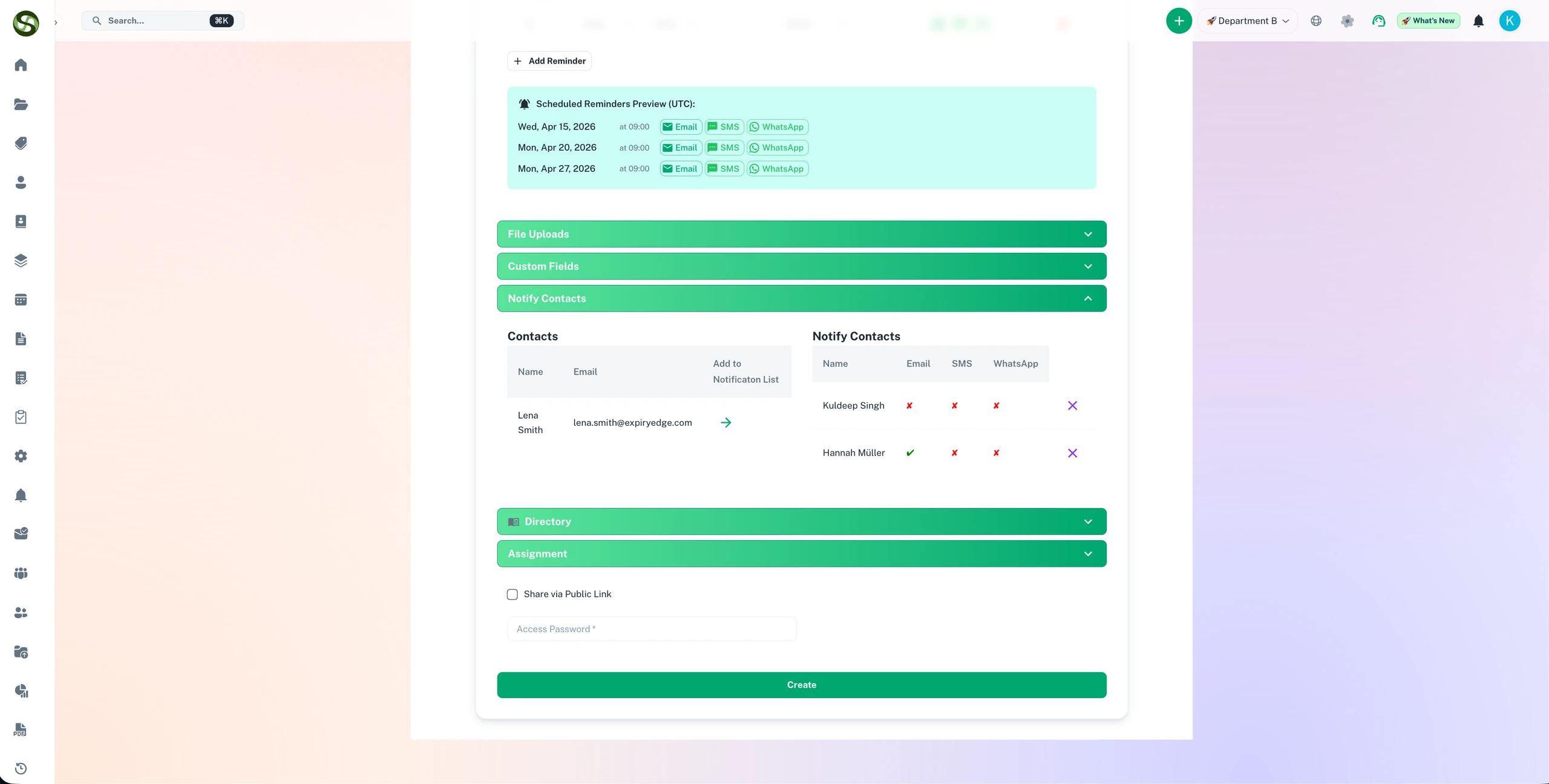
Contact Management
Add contacts who should receive notifications about this expiry. This could be the responsible party, stakeholders, or team members involved in the renewal process.
➕ Adding Contacts
- Select existing contacts: Choose from your organization's contact database
- Create new contacts: Add contact details on-the-fly with the quick-add form
👤 Assignment
Assign the expiry to a specific team member who is responsible for managing and renewing it.
Benefit: Clear accountability ensures nothing falls through the cracks. The assigned person receives all notifications and can be held responsible for renewal.
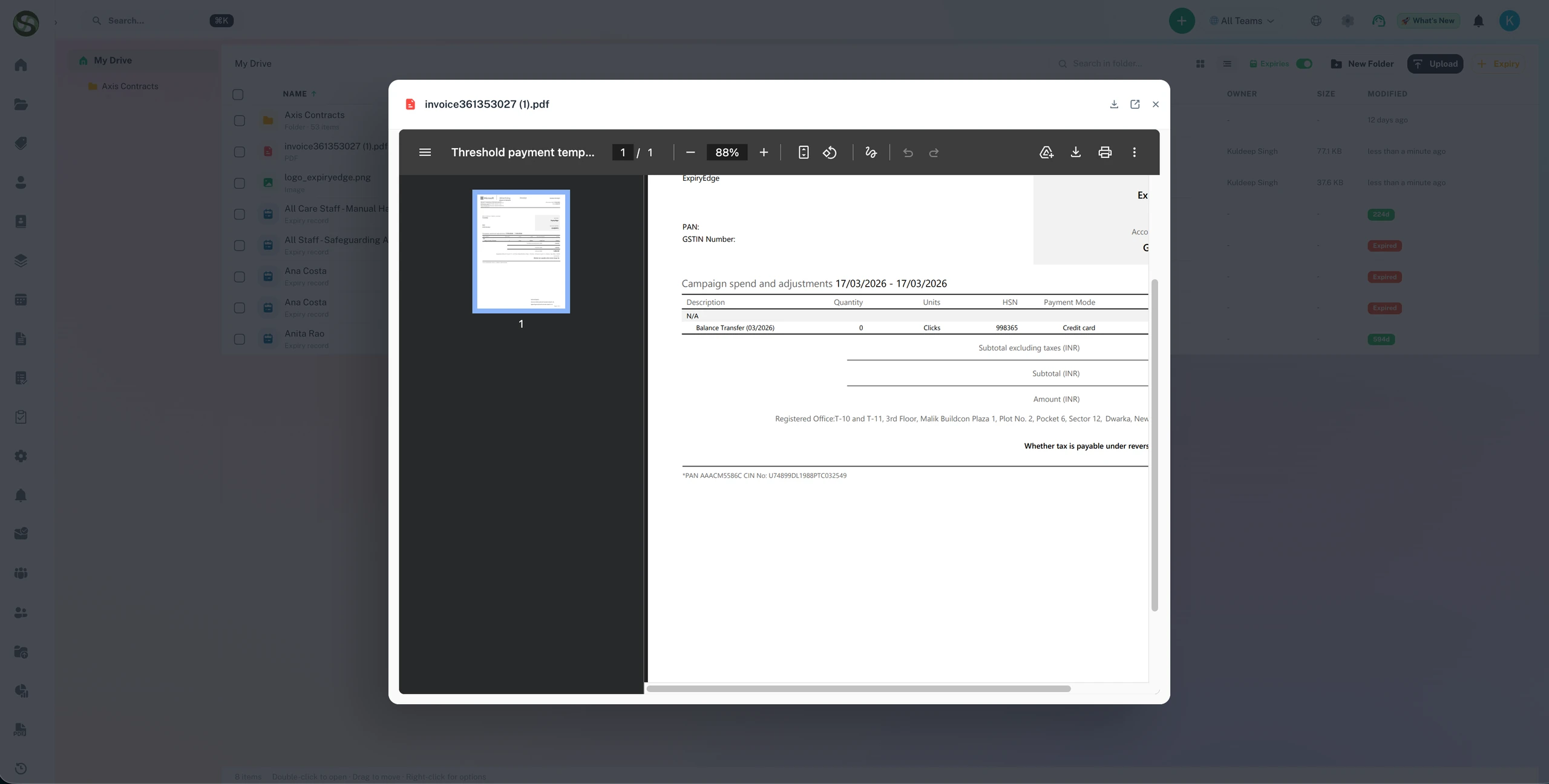
Document Attachments
Attach important documents directly to your expiry. Keep everything in one place-certificates, licenses, contracts, invoices, and supporting documentation.
📤 Uploading Documents
- Drag and drop: Simply drag files into the upload area
- Click to browse: Traditional file selection from your computer
- Supported formats: PDF, Word, Excel, images, and more
- File size limits: Up to 10MB per file (upgradeable with premium plans)
📋 Document Organization
Add descriptive names to your attachments so team members know what each document contains.
Examples: "Original Certificate.pdf," "Renewal Application Form.docx," "Payment Receipt.pdf"
🔒 Security
All documents are encrypted and stored securely. Access is controlled by folder permissions and team assignments.
Advanced Features
🔁 Recurring Expiries
Set up automatic renewal for items that recur on a regular schedule. Perfect for annual licenses, quarterly compliance checks, or monthly subscriptions.
- Recurrence patterns: Daily, weekly, monthly, quarterly, yearly
- Auto-create: System automatically creates the next expiry when current one is marked done
- Copy settings: All reminders, contacts, and settings transfer to new occurrences
📋 Checklist Items
Break down the renewal process into actionable steps. Create a checklist of tasks that must be completed before the expiry date.
Example checklist for license renewal:
- Complete online training modules
- Pass certification exam
- Submit renewal application
- Pay renewal fee
- Upload proof of completion
🎯 Priority Levels
Set priority (High, Medium, Low) to indicate urgency and importance. High-priority items appear at the top of lists and get special highlighting.
🌐 Public/Private
Control visibility by marking expiries as public (visible to entire organization) or private (visible only to assigned team/contacts).
📊 Custom Data Templates
Use templates to capture additional structured data specific to your type of expiry. Templates can include custom fields like policy numbers, vendor details, cost information, and more.
Best Practices & Tips
✅ Do's
- Use descriptive names: Make expiry names searchable and instantly understandable
- Set multiple reminders: Create a reminder schedule that provides adequate notice
- Attach source documents: Upload the original certificate or license for reference
- Assign ownership: Always assign a responsible person for accountability
- Leverage folders: Keep related expiries organized in appropriate folders
- Use tags strategically: Add tags for easy filtering and reporting
- Enable recurring: Automate annual or periodic renewals to save time
❌ Don'ts
- Don't skip reminders: Even if you think you'll remember, set reminders anyway
- Don't use vague names: "License 1" tells you nothing useful
- Don't ignore time zones: If working across regions, always set the correct timezone
- Don't forget to save: The form auto-saves, but click submit when you're done
- Don't overlook contacts: Add everyone who needs to know about this expiry
💡 Pro Tips
- Batch similar expiries: Create multiple related expiries at once by duplicating and editing
- Use templates: Set up custom templates for repeating expiry types to speed up data entry
- Color coding: Use priority levels to create visual hierarchy in your dashboard
- Reminder timing: For complex renewals, start reminders 90+ days in advance
- Document everything: Include renewal instructions in the description field
Common Use Cases
Professional License Tracking
Track medical, legal, engineering, or other professional licenses. Set reminders at 90, 60, and 30 days to allow time for continuing education requirements and renewal applications.
Contract Renewals
Manage vendor contracts, service agreements, and business partnerships. Set reminders well in advance to allow time for negotiation, review, and approval processes.
Compliance & Regulatory Deadlines
Track compliance certifications, regulatory filings, and audit deadlines. Use checklists to ensure all requirements are met before submission dates.
Insurance Policy Management
Never let insurance lapse. Track all policies with automatic reminders for renewal. Attach policy documents for quick reference during claims.
Software Subscriptions
Track SaaS and software license renewals. Set up recurring expiries for monthly or annual subscriptions. Include license keys and purchase orders as attachments.
Troubleshooting & FAQ
Q: Why can't I save my expiry?
A: Make sure all required fields are filled in (Expiry Name and Expiry Date must be set). Check for validation errors highlighted in red at the top of form sections.
Q: How do I edit an expiry after creating it?
A: Navigate to the expiry details page and click the "Edit" button. This will reopen the form with all current values pre-filled for you to modify.
Q: Can I delete reminders after setting them?
A: Yes! In the reminders section, click the trash icon next to any reminder to remove it. You can also edit reminder timing by removing and re-adding.
Q: What happens if I don't select a folder?
A: The expiry will be placed in your default folder or root level. You can always move it to a folder later from the expiry details page.
Q: How many documents can I attach?
A: Free plans allow up to 5 attachments per expiry. Premium plans offer unlimited attachments with larger file size limits.
Q: Can I create expiries in bulk?
A: Yes! Use the bulk import feature from the main expiries page. Download our CSV template, fill in your data, and upload to create multiple expiries at once.
🎯 Ready to Create Your First Expiry?
Now that you understand how the expiry form works, it's time to put it into practice. Start by creating a simple expiry to get comfortable with the interface.