
Workflow Guide
Build powerful workflows and standard operating procedures to streamline your team's processes
🚀 What are Workflows?
Workflows are your digital playbooks-structured, repeatable processes that guide your team through complex tasks. Think of them as interactive checklists on steroids. Whether you're managing a 90-day compliance review, onboarding a new employee, or executing a product launch, workflows ensure nothing falls through the cracks.
Unlike simple to-do lists, workflows organize tasks into logical sections, support collaboration, track progress, and can be reused over and over. Once you build a workflow, you can run it as many times as needed!
Understanding Workflow Structure
Every workflow is built from three levels of organization:
1. Workflow (Top Level)
The overall process or procedure. Example: "Annual License Renewal Process"
2. Sections (Phases)
Major phases within the workflow. Example: "Preparation," "Submission," "Approval," "Completion"
3. Steps (Tasks)
Individual tasks within each section. Example: "Upload current certificate," "Complete online form"
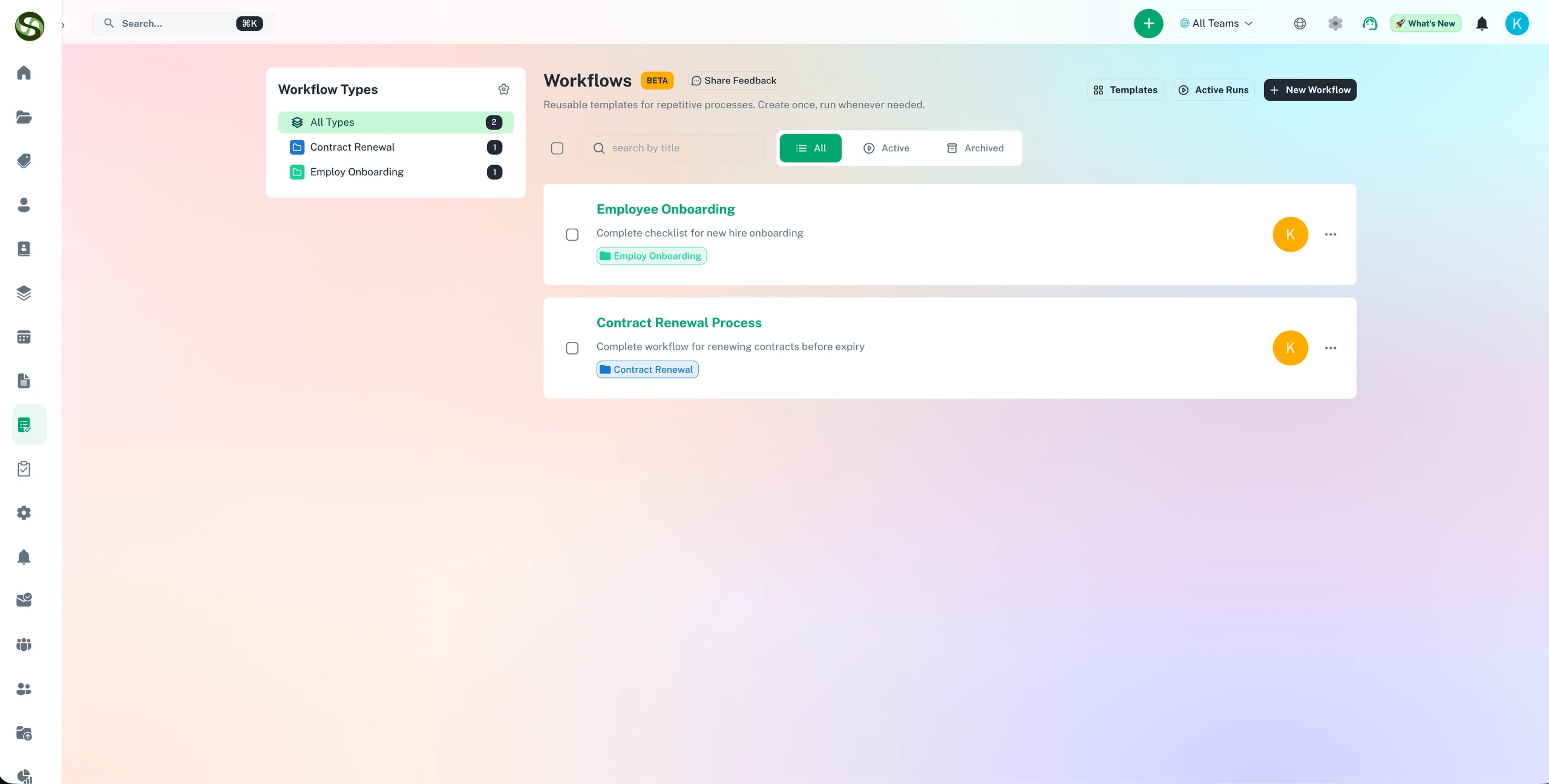
📊 Example Structure
Workflow: Employee Onboarding
📁 Section 1: Pre-Arrival Preparation
✓ Step: Order computer equipment
✓ Step: Create email account
✓ Step: Prepare welcome package
📁 Section 2: First Day Activities
✓ Step: Office tour
✓ Step: Sign employment documents
✓ Step: IT setup and training
📁 Section 3: First Week Training
✓ Step: Department introductions
✓ Step: Complete online training modules
✓ Step: Shadow experienced team member
Creating Your First Workflow
🎯 Step 1: Create the Workflow Container
Start by creating the workflow itself-the top-level container for your process.
- Navigate to the Workflows page from your dashboard
- Click the "Create Workflow" button
- Enter a descriptive workflow name (e.g., "Quarterly Compliance Audit")
- Add a description explaining what this workflow is for
- Optionally, add tags for organization (e.g., "Compliance," "Quarterly," "Finance")
- Select a workflow type if you have categories set up
- Click "Create" to save the workflow shell
📂 Step 2: Add Sections (Phases)
Break your workflow into logical phases or stages. Think about the major milestones in your process.
- Open your newly created workflow
- Click "+ Add Section" button
- Give the section a name (e.g., "Planning Phase," "Execution," "Review & Approval")
- Add a description explaining what happens in this phase
- Set the order (sections run sequentially by default)
- Save the section
- Repeat to add all sections you need
💡 Section Planning Tips
- Keep it logical: Group related activities together
- Typical number: Most workflows have 3-7 sections
- Chronological order: Arrange sections in the order they'll be executed
- Common patterns: Preparation → Execution → Review → Completion
✓ Step 3: Add Steps (Tasks)
Now fill each section with the specific tasks that need to be completed.
- Click on a section to expand it
- Click "+ Add Step" within that section
- Enter a clear step title (e.g., "Submit application to regulatory body")
- Add detailed instructions in the description
- Set if this step is required or optional
- Assign a default owner (optional-can be assigned during run)
- Add attachments like forms or reference documents
- Set estimated time to complete (helps with planning)
- Save the step
- Repeat for all tasks in this section
📝 Writing Effective Steps
- Action-oriented: Start with a verb (Complete, Submit, Review, Upload, Contact)
- Specific: "Email vendor for renewal quote" not just "Contact vendor"
- Include details: Add instructions, links, or requirements in the description
- One action per step: Break complex tasks into smaller steps
- Measurable completion: Make it clear when the step is "done"
Using Workflow Templates
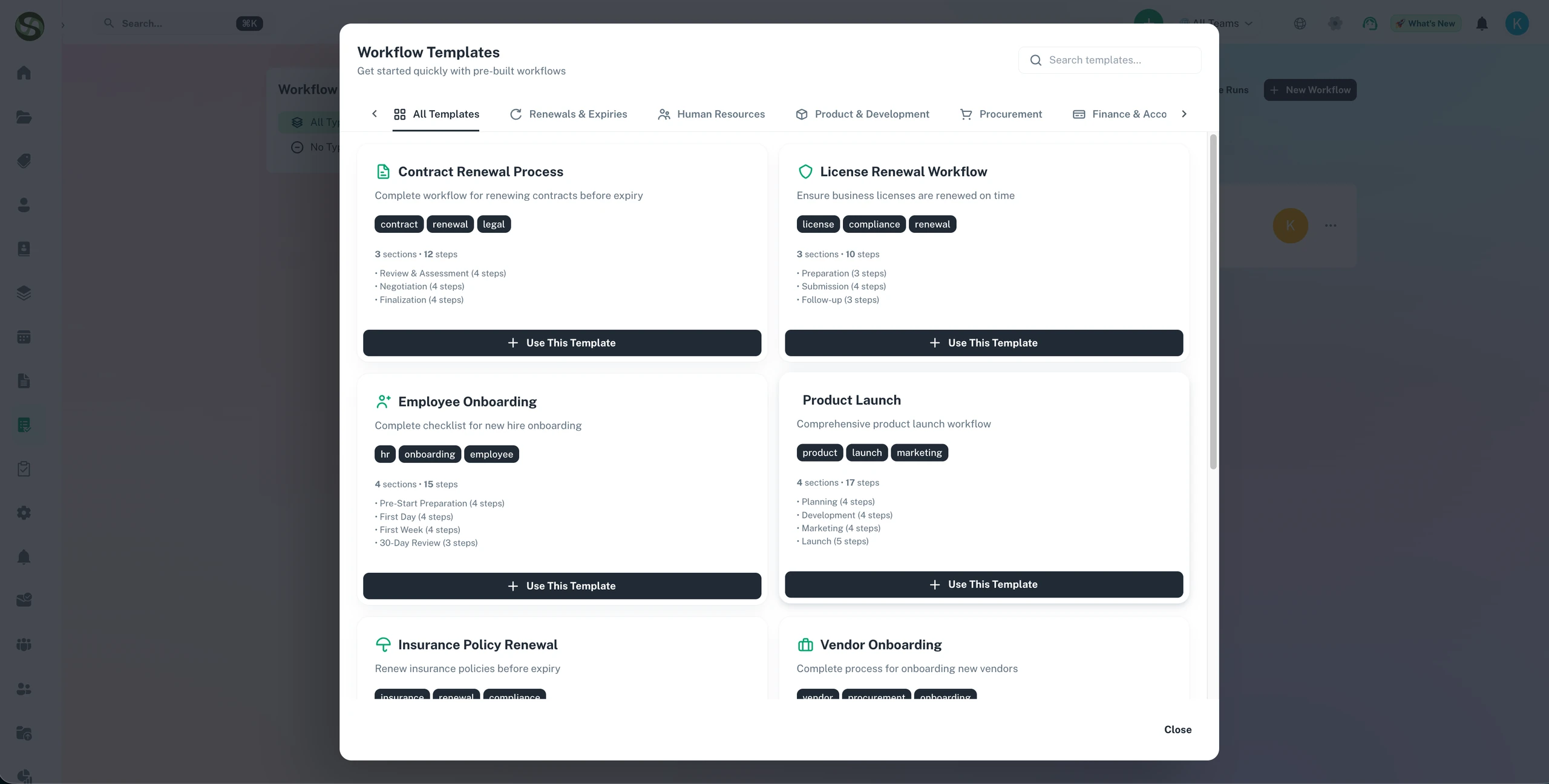
Don't start from scratch! ExpiryEdge provides pre-built workflow templates for common processes.
🎨 Importing from Templates
- Click "Create Workflow" button
- Select "Use Template" option
- Browse available templates by category
- Preview template sections and steps
- Click "Use Template" to import
- Customize the imported workflow to match your needs
📚 Template Categories
🏢 Business Operations
• Onboarding processes
• Quarterly reviews
• Contract renewals
• Vendor evaluations
✅ Compliance
• License renewals
• Safety inspections
• Audit preparations
• Regulatory filings
🏗️ Project Management
• Project kick-offs
• Sprint planning
• Product launches
• Post-project reviews
👥 HR & People
• Employee onboarding
• Performance reviews
• Exit procedures
• Training programs
✏️ Customizing Templates
Templates are starting points-make them your own:
- Add or remove sections based on your needs
- Modify step descriptions with your specific requirements
- Attach your company's forms and documents
- Adjust step order to match your process
- Add company-specific tags and categories
Managing & Organizing Workflows
✏️ Editing Workflows
Workflows evolve-update them as your processes improve:
- Edit workflow details: Click edit icon to change name, description, or tags
- Reorder sections: Drag and drop to change section sequence
- Reorder steps: Drag steps within sections to adjust task order
- Add/remove steps: Workflows can grow or shrink over time
- Update descriptions: Keep instructions current as procedures change
📋 Duplicating Workflows
Create variations quickly by duplicating existing workflows:
- Find the workflow you want to copy
- Click the "More Options" menu (•••)
- Select "Duplicate"
- Give the copy a new name
- All sections and steps are copied
- Modify as needed for the new use case
🗄️ Archiving Workflows
Keep your workflow list clean by archiving outdated processes:
- When to archive: Workflows no longer in regular use
- How: Click "Archive" from the workflow options menu
- Effect: Hidden from main list but preserved with all history
- Recovery: Unarchive anytime to bring it back
🗑️ Deleting Workflows
Only delete workflows that are truly obsolete and have no value for historical reference.
Workflow Types & Organization
🏷️ Workflow Types
Create workflow types to categorize and organize your processes:
- Set up types: Click "Manage Types" from the workflows page
- Create categories: Examples: "Compliance," "HR," "Operations," "Sales"
- Assign colors: Visual coding makes workflows easy to identify
- Filter by type: Quickly find all workflows in a category
🏷️ Tags
Use tags for flexible, cross-cutting organization:
- Multiple tags: Add as many as relevant
- Examples: "Monthly," "Regulatory," "High-Priority," "Customer-Facing"
- Search & filter: Find workflows by any tag
- Evolving organization: Add new tags as needs change
📊 Workflow Dashboard
The workflows page provides powerful organization features:
- Search: Find workflows by name or description
- Filter by status: Active, archived, or all
- Filter by type: Show only specific categories
- Sort options: By name, date created, or last modified
- List/grid view: Choose your preferred layout
Running Workflows
Once your workflow is built, you can run it as many times as needed!
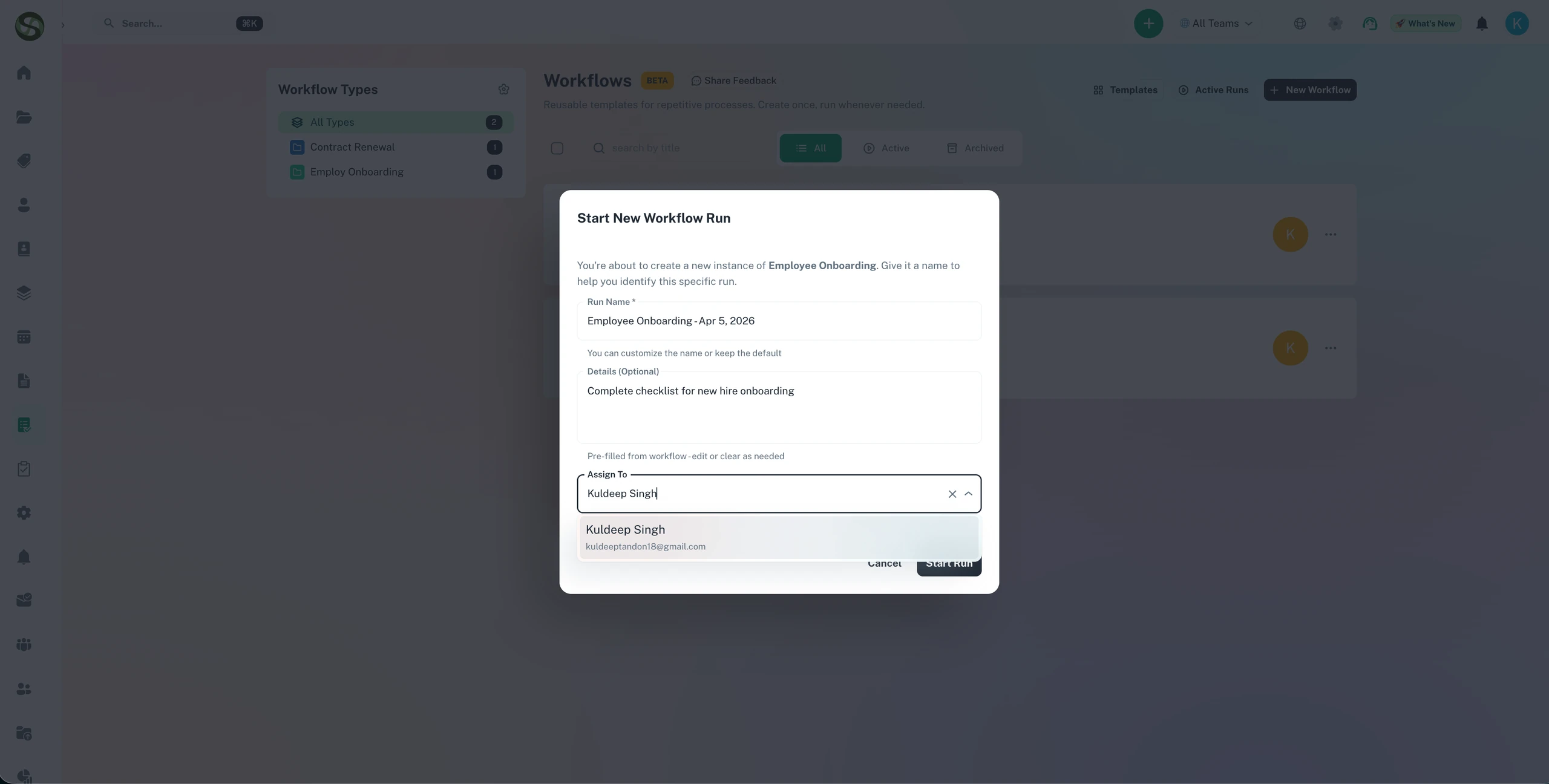
▶️ Starting a Workflow Run
- Find the workflow you want to execute
- Click "Start New Run" or the play button
- Give this run a unique title (e.g., "Q1 2026 Compliance Audit")
- Assign team members to participate
- Set a due date (optional but recommended)
- Add any run-specific notes
- Click "Start" to create the workflow run
📈 Workflow Run Statistics
Each workflow shows how many times it's been run:
- Total runs: All-time execution count
- Active runs: Currently in progress
- Completed runs: Successfully finished
- Success rate: Percentage completed on time
Best Practices for Workflows
✅ Do's
- Start simple: Begin with basic workflows and add complexity as needed
- Use clear naming: Descriptive names for workflows, sections, and steps
- Add detailed descriptions: Future you will thank present you!
- Include instructions: Write steps assuming someone new will execute them
- Test before deploying: Run through the workflow once to verify it works
- Iterate based on feedback: Improve workflows after each run
- Use templates: Don't reinvent the wheel-start with templates
- Version control: Note major changes in workflow descriptions
❌ Don'ts
- Don't make steps too large: Break complex tasks into smaller steps
- Don't skip descriptions: Even obvious steps benefit from context
- Don't over-complicate: If a process doesn't need a workflow, use simple expiries
- Don't set and forget: Review and update workflows regularly
- Don't make too many variations: Standardize when possible
💡 Pro Tips
- Numbering: Use numbers for steps that must happen in specific order
- Dependencies: Note in descriptions if steps depend on others
- Estimated times: Add time estimates to help with resource planning
- Attach resources: Include forms, templates, or reference docs in relevant steps
- Regular reviews: Schedule quarterly reviews of your workflows
- Team input: Get feedback from people who will execute the workflow
- Document changes: Keep notes on why you changed a workflow
Common Workflow Use Cases
License Renewal Process
90-day workflow for managing professional license renewals. Includes sections for preparation, continuing education completion, application submission, payment, and documentation.
Employee Onboarding
Comprehensive 30-day onboarding process with pre-arrival prep, first day activities, first week training, and 30-day review. Ensures consistent onboarding experience.
Quarterly Compliance Audit
Structured process for quarterly internal audits. Includes planning, document review, interviews, findings compilation, corrective actions, and final report.
Product Launch Checklist
End-to-end launch workflow covering development completion, QA testing, marketing materials, launch communications, and post-launch monitoring.
Monthly Financial Close
Repeatable month-end close process with sections for transaction review, reconciliations, journal entries, management reporting, and final approval checklist.
Troubleshooting & FAQ
Q: I can't run my workflow. Why?
A: Workflows must have at least one section with at least one step before they can be run. Check that you've added the complete structure.
Q: Can I edit a workflow while runs are active?
A: Yes! Editing the template doesn't affect active runs. They continue with the version they started with. Only new runs will use the updated template.
Q: How do I reorder steps after creating them?
A: Open the workflow editor and simply drag steps up or down. They'll automatically renumber in the new order.
Q: Can I move a step to a different section?
A: Currently, steps must be deleted from one section and recreated in another. Copy the step details first to avoid retyping.
Q: What's the difference between archiving and deleting?
A: Archiving hides the workflow from your main list but preserves all data and history. Deletion is permanent and removes everything. Always archive unless you're absolutely sure you won't need it.
Q: Can I share workflows with other organizations?
A: Workflows are organization-specific currently. However, you can export workflow details and share them as documentation for others to recreate.
Q: How many steps can a workflow have?
A: There's no hard limit, but for usability, we recommend keeping workflows under 50 steps. Consider breaking very large processes into multiple workflows.
🎯 Ready to Execute Your Workflows?
Now that you know how to create workflows, learn how to run them and track progress with your team!