
How to Build a Tracking Dashboard for Renewals and Audits

Missed renewals and chaotic audit prep rarely happen because people do not care. They happen because critical dates, owners, and proof of completion live in too many places, and no one has a single view that answers, “Are we on track right now?”
A well-built tracking dashboard for renewals and audits turns a scattered set of calendar events and spreadsheets into an operational control system. It helps you see what is due, what is at risk, who owns the next action, and whether you can produce evidence fast when auditors ask.
What a renewals and audits tracking dashboard should do
Before you choose a tool or design a layout, get specific about outcomes. A dashboard for this use case is not just a list of upcoming dates. It should:
- Prevent surprises by highlighting items that will become urgent soon (based on lead time, not just expiration date).
- Show execution status, not just due dates (in review, waiting on vendor, approved, submitted, renewed).
- Make ownership explicit (primary owner, backup, escalation path).
- Support audit-readiness (evidence attached, searchable, permissioned).
- Drive a cadence (weekly triage, monthly controls check, pre-audit freeze).
If your dashboard does not change how the team works week to week, it will eventually become another report nobody trusts.
Step 1: Define the scope (what counts as “renewal” and what counts as “audit”)
Start with a tight inventory. Most teams track a mix of:
- Licenses and permits
- Certifications and training
- Insurance policies
- Vendor and SaaS subscriptions
- Customer, partner, or facility contracts
- Equipment inspections and safety checks
- Internal controls with recurring evidence (quarterly access review, annual policy attestation)
Now decide what the dashboard must cover in the first version. A good rule: include anything that can cause one of the outcomes below:
- A failed audit finding (missing evidence, expired credential)
- Operational downtime (work stops until a permit is active)
- Financial loss (late fees, auto-renewal you wanted to cancel)
- Legal exposure (lapsed coverage, non-compliance)
Keep “nice-to-track” items separate until the dashboard is stable.
Step 2: Build the underlying register (the data model that powers the dashboard)
Dashboards only work when the underlying data is consistent. Whether you use a spreadsheet, a database, or a dedicated platform, define a standard set of fields for every tracked item.
Here is a practical baseline that supports both renewals and audits.
Renewals and Audits
| Field | Why it matters | Example |
|---|---|---|
| Item name | Human-readable reference | “CA Contractor License” |
| Category | Enables reporting and templates | “License”, “Insurance”, “Contract” |
| Entity / location | Critical for multi-site orgs | “Dallas branch”, “Subsidiary A” |
| Vendor / authority | Who issues or renews it | “State Board”, “Carrier”, “Vendor X” |
| Expiration date | The external deadline | 2026-10-31 |
| “Renew by” date | Your internal deadline (lead time included) | 2026-09-15 |
| Risk tier | Drives prioritization and escalations | High, Medium, Low |
| Owner | Single accountable person | “Ops Manager” |
| Backup owner | Coverage for PTO and turnover | “Ops Lead” |
| Status | Shows execution stage | “In review” |
| Evidence link / attachment | Makes audits faster | PDF, email approval, receipt |
| Notes | Captures nuance and exceptions | “Requires notarized form” |
Design choice that matters: use both an expiration date and a renew-by date. The dashboard should rank work by renew-by date, because that is the last safe moment to act.
How to calculate a sensible “renew by” date
Work backward from the expiration date and subtract:
- External processing time (agency or vendor turnaround)
- Internal cycle time (review, approvals, signatures)
- Notice periods (cancellation windows, auto-renew clauses)
- Calendar risk (holidays, peak season)
If you are unsure, start conservative, then tighten based on real cycle times.
Step 3: Define statuses that reflect real work (not vague labels)
Most dashboards fail because “status” becomes subjective. Pick a small set of statuses that match your workflow and can be audited.
A common, effective set:
- Not started (on the radar, no action taken)
- In progress (someone is actively executing a checklist)
- Waiting (blocked on vendor, authority, or internal approver)
- Submitted (renewal or proof sent, awaiting confirmation)
- Completed (renewed, evidence stored, next cycle scheduled)
- Exception (no longer needed, replaced, or formally accepted risk)
If you use “Waiting,” require a short note that states what you are waiting for and who has the next move.
Step 4: Choose the KPIs that actually reduce renewal and audit risk
Dashboards get noisy when they try to measure everything. For renewals and audits, you want KPIs that show both timeliness and control quality.
KPIs
| KPI | What it tells you | How to use it |
|---|---|---|
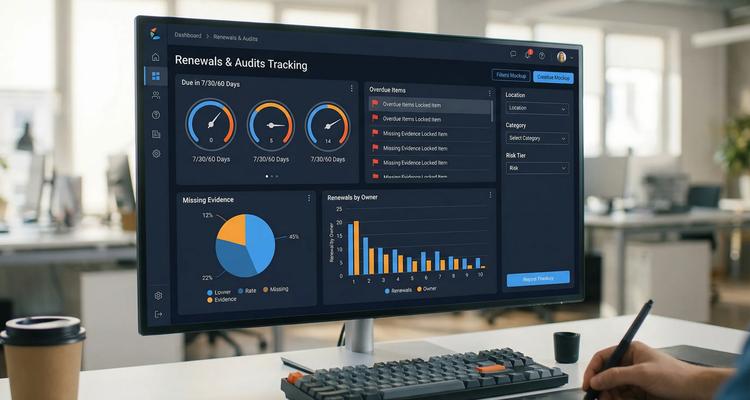
| Items due by renew-by date (7/30/60 days) | Near-term workload and risk | Drives weekly planning |
| Overdue (by renew-by date) | Active exposure | Triggers escalation |
| High-risk items due soon | What leadership should watch | Used in exec view |
| Cycle time to completion | Process efficiency | Improves lead times |
| % completed with evidence attached | Audit readiness quality | Drives “no proof, not done” discipline |
| Workload by owner | Capacity and bottlenecks | Helps rebalance assignments |
A simple but powerful policy is: nothing is “Completed” until evidence is attached or linked.
Step 5: Design dashboard views for different audiences
A single dashboard rarely satisfies everyone. Instead, build role-based views that all pull from the same register.
Executive view (risk and exceptions)
This is not a task list. It is a risk radar.
Include:
- High-risk items due in 30 to 60 days
- Overdue items and their escalation owners
- Exceptions requiring acceptance (and who accepted them)
- Trends (overdue count over time)
Ops and compliance view (what to do next)
This is the “daily driver” view.
Include:
- Items sorted by renew-by date
- Status and next action
- Owner and backup owner
- Missing evidence flag
- Quick filters (location, category, risk tier)
Audit prep view (evidence and traceability)
When an audit is scheduled, your question becomes: “Can we prove it fast?”
Include:
- Items within audit scope (by framework, location, or period)
- Evidence attached vs missing
- Last updated date and updated by
- Searchable tags (policy area, control ID, regulator)
Audit guidance such as ISO 19011 (Guidelines for auditing management systems) emphasizes a structured approach to audit evidence and traceability. Your dashboard should make that structure practical.
Finance and procurement view (cost and renewal decisions)
For subscriptions, contracts, and vendor renewals, finance often needs early visibility.
Include:
- Renewal decisions required (renew, renegotiate, cancel)
- Key dates (notice period, auto-renew cutoff)
- Contract owner and approver
- Linked documents (order forms, SOWs, renewal quotes)
If your team runs “renewal review” meetings, having the right snacks on hand is not a control, but it does help people show up and stay focused. Some ops teams even track office supply and pantry vendor renewals alongside other subscriptions, and restock for long meetings through sources like buying bulk jerky online to reduce last-minute runs.
Step 6: Add alerting logic that matches the dashboard (and includes escalation)
A dashboard shows the truth, but reminders create action. Align notifications to your renew-by date and risk tier.
A practical starting cadence:
- High risk: 60, 30, 14, 7 days before renew-by date, plus escalation if overdue
- Medium risk: 30, 14, 7 days before renew-by date
- Low risk: 14, 7 days before renew-by date
Use multi-channel reminders when urgency is real (email plus chat, SMS, or task assignment), but keep the message consistent:
- What is due (item)
- When it must be done (renew-by)
- What “done” means (evidence required)
- What happens if late (escalation)
Step 7: Make it audit-ready by design (evidence, search, access)
Audit readiness is not a scramble you do in Q4. It is a property of the system.
Evidence handling: link it to the item, not a folder
Storing PDFs in a shared drive is not enough if no one can map them back to the specific renewal or control.
Aim for:
- Evidence attached directly to the tracked item
- A consistent naming convention (item, period, date)
- A “missing evidence” flag that is visible on the dashboard
Search: auditors do not wait while you hunt
If you cannot find evidence in under a minute, you will feel it during an audit. Advanced search should work across:
- Item name
- Category
- Location
- Vendor or authority
- Tags (control ID, regulation area)
Access control: prove you protect sensitive documents
Many renewal artifacts include personal data or financial terms. Use permissions so only the right people can see sensitive evidence, while still keeping the renewal status visible to those who need to coordinate.
Step 8: Operationalize the dashboard with a weekly and monthly rhythm
A dashboard is only as good as the habit around it.
Weekly (30 minutes):
- Triage what is due in the next 30 days
- Reassign anything stuck in “Waiting” too long
- Confirm owners for new items
Monthly (60 minutes):
- Review overdue trends and root causes
- Spot categories that need better templates or lead times
- Run a quick evidence completeness check
Quarterly (optional but valuable):
- Do a mini internal audit on a sample of items
- Verify evidence quality (not just presence)
- Update risk tiers based on changes (new location, new regulator, new vendor)

Step 9: Decide if you are building this in a spreadsheet or a purpose-built system
You can create a basic tracking dashboard in spreadsheets, especially for a small scope and low change rate. The risk rises quickly when you need:
- Multi-stage reminders and escalations
- Shared ownership and handoffs
- Evidence attachments tied to each item
- Reliable audit trails and access control
- Bulk imports and fast search across hundreds or thousands of records
If you want a deeper comparison between spreadsheets and workflow software for renewals, ExpiryEdge has a dedicated breakdown here: Workflow System Software vs Spreadsheets: Key Differences.
How ExpiryEdge supports a renewals and audits tracking dashboard
If your goal is a dashboard that is not just visible but operational, ExpiryEdge is built around deadline-first execution for renewals, licenses, compliance, and business-critical actions.
Based on the platform overview you shared, teams typically use ExpiryEdge to:
- Centralize renewals and compliance deadlines in an expiry dashboard
- Set up smart expiration tracking and calendar views
- Run automated workflow checklists so “status” reflects real steps
- Send multi-channel notifications to reduce reliance on memory
- Attach documents to each item for audit-ready evidence
- Use advanced search and customizable expiry categories
- Bulk import expiries and collaborate across teams
If you are currently designing your dashboard and want it to become a durable system of record, you can explore ExpiryEdge here: ExpiryEdge expiry reminder software.
A quick “good dashboard” checklist before you ship v1
A strong first version usually answers yes to these:
- Can we filter to “high risk due in 30 days” in one click?
- Do we have renew-by dates, not only expiration dates?
- Is every item owned by a person, with a backup?
- Do statuses map to real workflow stages?
- Can we report “completed but missing evidence”?
- Can we find a specific renewal’s proof fast, using search?
- Do overdue items automatically escalate?
If you build around those questions, your tracking dashboard becomes more than a view. It becomes a control that prevents late fees, missed renewals, and painful audit surprises.