
Workflow Run Guide
Execute workflows, track progress, and collaborate with your team to get things done
🎬 What is a Workflow Run?
A workflow run is a specific execution of a workflow template. Think of it like this: A workflow is the recipe, and a workflow run is actually cooking the meal. Each run is independent-you can have multiple runs of the same workflow happening simultaneously, each tracked separately.
When you start a workflow run, the system creates a working copy of all sections and steps. Your team can then collaborate to complete tasks, track progress, add comments, and ultimately finish the entire process.
Starting a Workflow Run
▶️ How to Start a Run
- Navigate to the Workflows page
- Find the workflow you want to execute
- Click the "Start New Run" button or play icon
- Enter a descriptive title for this specific run (e.g., "Q1 2026 Audit")
- Select team members to assign to this run
- Set a due date (optional but recommended)
- Add any run-specific notes or context
- Click "Start Run" to begin
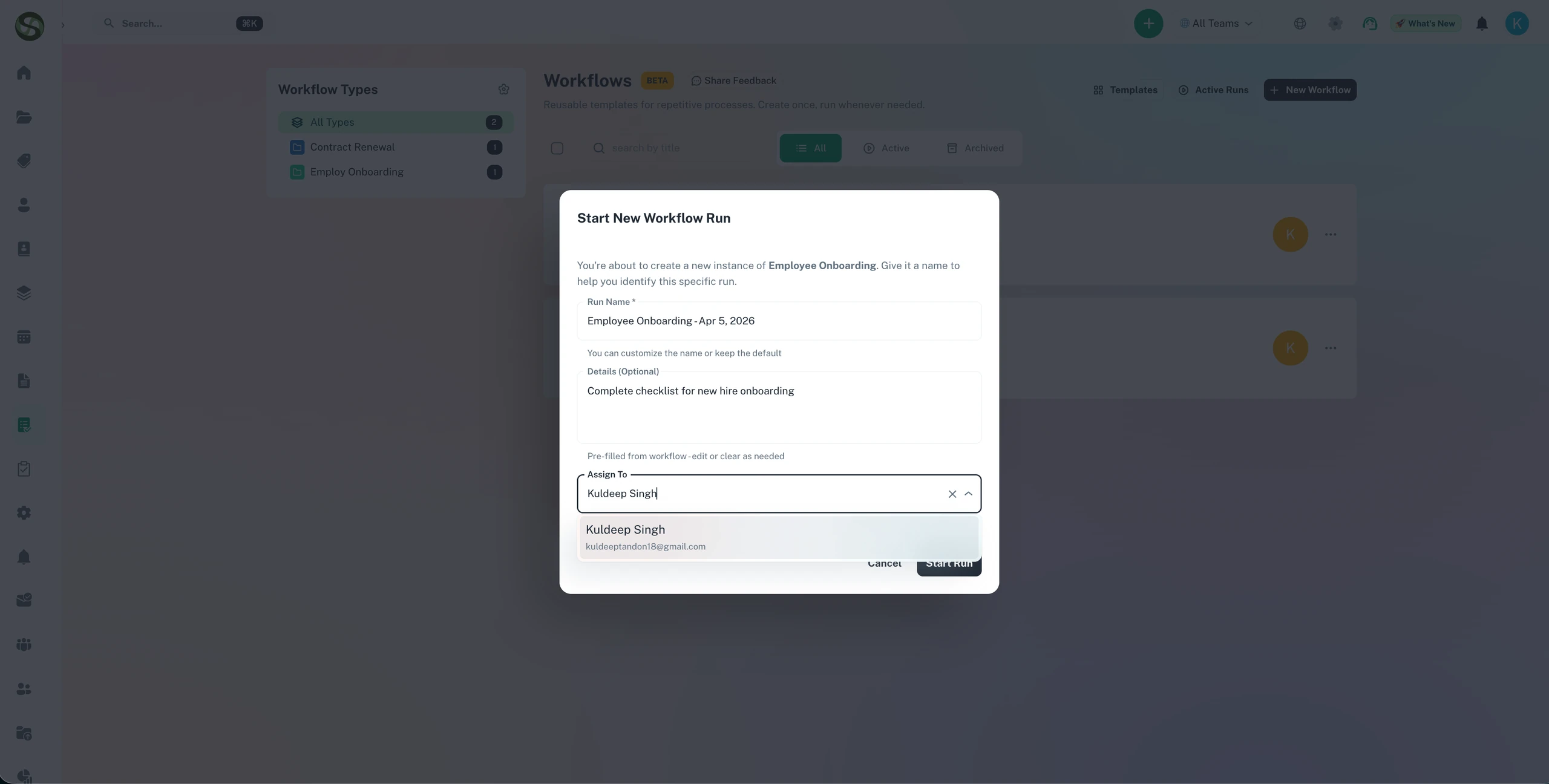
📝 Naming Your Run
Give each run a unique, meaningful name that helps you identify it later:
- Include date/period: "Q3 2026 Compliance Review"
- Include person/entity: "John Smith Onboarding"
- Include location: "Chicago Office Inspection"
- Be specific: "Annual Medical License Renewal - Dr. Johnson"
👥 Assigning Team Members
Add everyone who needs to participate in this workflow execution:
- Immediate assignment: Assign all team members at start
- Just-in-time assignment: Assign specific people to steps as you go
- Team access: All assigned members can view the entire run
- Notifications: Assigned members receive updates about the run
Understanding the Run Interface
The workflow run page is your command center for executing and tracking the process.
📊 Header Information
The top of the page displays key run information:
- Run title: The specific name you gave this execution
- Workflow name: The template this run is based on
- Status badge: Active, In Progress, Completed, or Archived
- Progress bar: Visual indicator of completion percentage
- Due date: Target completion date (if set)
- Assigned team: Avatars of all participants
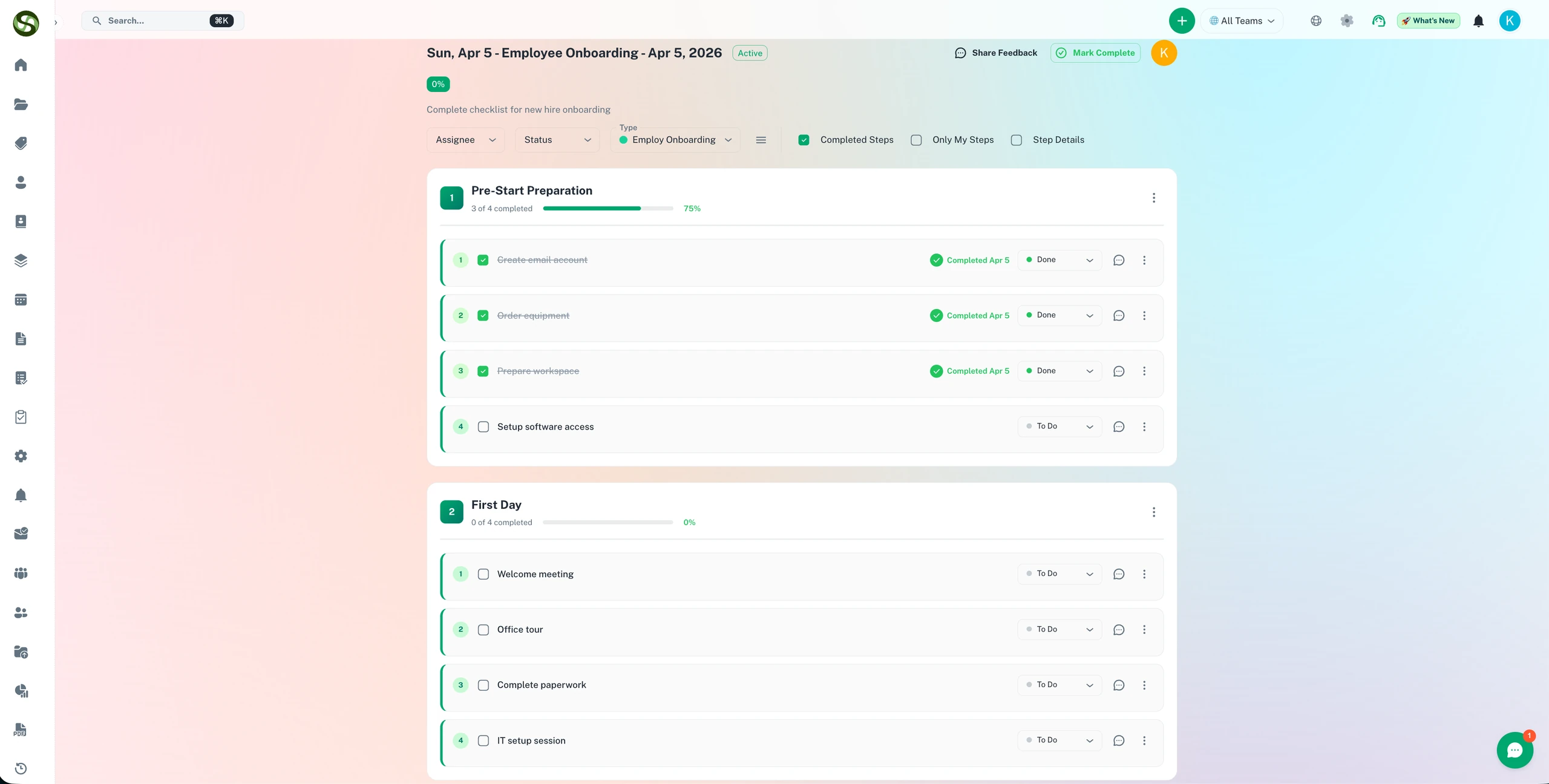
📂 Sections & Steps Layout
The main area shows all workflow sections with their steps:
- Expandable sections: Click to show/hide steps within each section
- Section progress: Each section shows its completion percentage
- Step checkboxes: Click to mark steps as complete
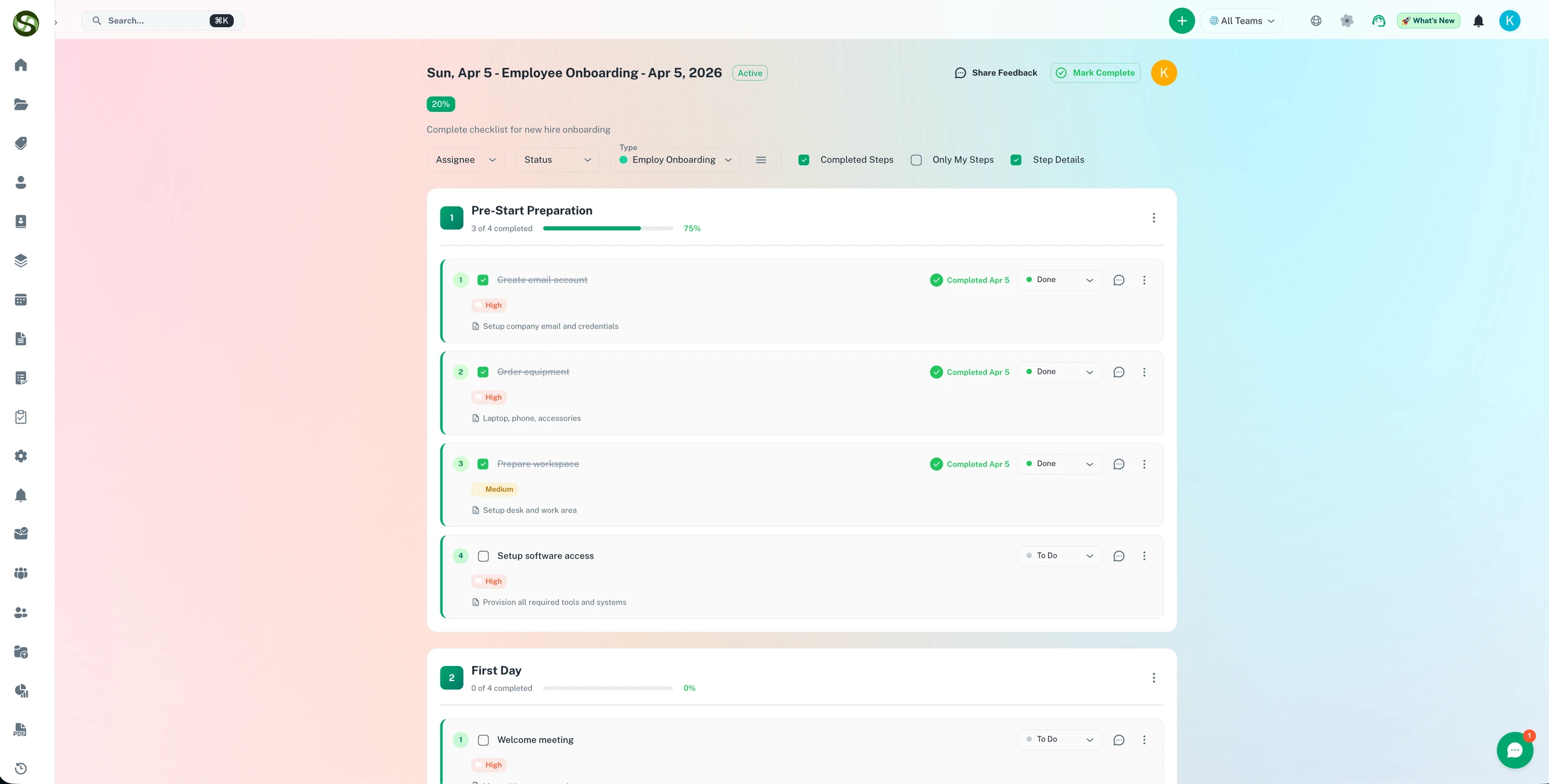
- Step details: Each step shows description, assignee, and status
- Visual flow: Follow the process from top to bottom
🎨 Visual Indicators
The interface uses color and icons to communicate status at a glance:
✅ Completed
Green checkmark, strikethrough text
⏳ In Progress
Orange indicator, normal text
⚪ Not Started
Gray, unchecked box
⚠️ Overdue
Red highlight on overdue items
Completing Steps & Tasks
✓ Marking Steps Complete
As you complete each task, mark it done in the system:
- Expand the section containing the step
- Find the step you've completed
- Click the checkbox next to the step name
- Step immediately updates to "completed" status
- Progress bar automatically updates
- System records who completed it and when
📝 Viewing Step Details
Click on any step to view full details:
- Description: Detailed instructions for completing the task
- Attachments: Reference documents or forms needed
- Assignment: Who is responsible for this step
- Estimated time: How long it should take
- Dependencies: Other steps that must be completed first
- Comments: Team discussion about this specific step
👤 Step Assignment
Assign individual steps to specific team members:
- Assign during run: Delegate tasks as the workflow progresses
- Reassign: Change assignee if responsibilities shift
- Notifications: Assigned person receives email/in-app notification
- My Tasks view: Team members see all steps assigned to them
↩️ Uncompleting Steps
Made a mistake? Simply uncheck the box to mark a step as not complete again. This is useful if:
- You marked something complete accidentally
- Work needs to be redone due to errors
- Additional tasks were discovered after marking complete
Team Collaboration
💬 Comments & Discussion
Communicate with your team directly within the workflow run:
- Run-level comments: General discussions about the entire workflow
- Step-level comments: Specific questions or notes about individual tasks
- @mentions: Tag team members to get their attention
- Threaded replies: Keep conversations organized
- Real-time updates: See new comments as they're added
🔔 Notifications
Stay informed with automatic notifications:
- When assigned to a workflow run
- When assigned to a specific step
- When someone @mentions you in comments
- When steps you're assigned to become available
- When workflow run is near its due date
- When workflow run is completed
📎 Attachments
Share files and documents within the workflow run:
- Step attachments: Add completion proof or related documents
- Run attachments: Share files relevant to entire workflow
- Quick access: All team members can view shared documents
- Version tracking: Upload updated versions as process evolves
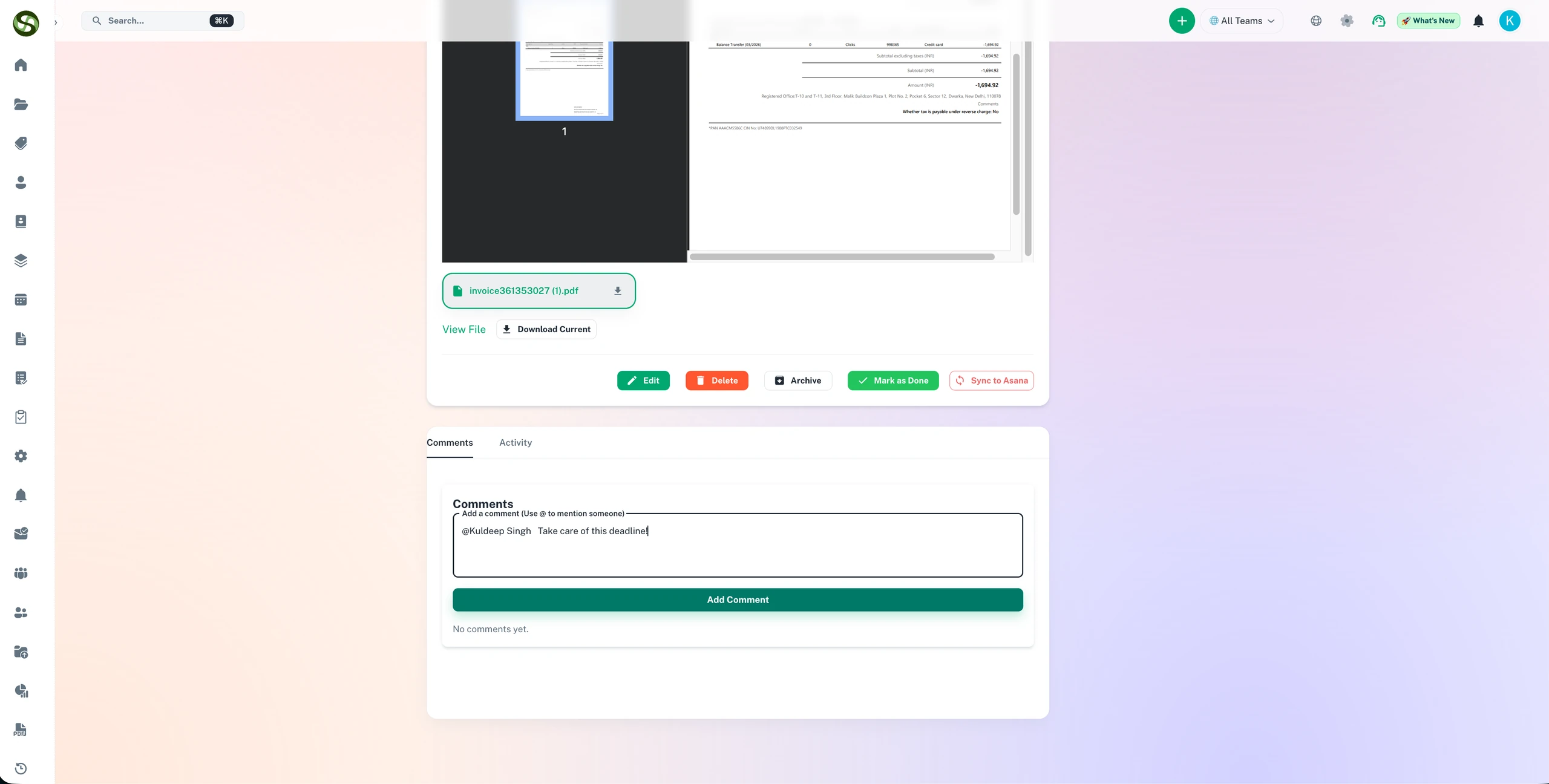
👥 Team Coordination
Best practices for team collaboration:
- Daily updates: Encourage team to check workflow run daily
- Blockers: Comment immediately if you're blocked on a step
- Handoffs: Comment when passing work to next person
- Questions: Ask questions early to avoid delays
- Completions: Note important outcomes when marking steps done
Tracking Progress
📊 Progress Metrics
Multiple views of progress help you stay on track:
- Overall progress bar: Percentage of all steps completed
- Section progress: Completion status for each phase
- Steps completed: Count like "15 of 23 steps complete"
- Time remaining: Days until due date
- On track indicator: Green/yellow/red status based on pace
📅 Timeline View
Visualize the workflow's progression over time:
- Start date: When the run began
- Target date: When it should finish
- Milestones: Major section completions
- Actual completion: Real completion date vs. target
📈 Activity Feed
Complete history of everything that's happened:
- Run started
- Steps completed
- Team members added
- Comments posted
- Files uploaded
- Assignments changed
- Run completed
⚠️ At-Risk Monitoring
System helps you identify when runs need attention:
- Behind schedule: Progress slower than expected pace
- Approaching deadline: Due date is near with work remaining
- Blocked steps: Tasks marked as blocked in comments
- Unassigned tasks: Steps with no assignee
Completing Workflow Runs
✅ Finishing a Run
When all required steps are complete, you can close out the workflow run:
- Verify all required steps are marked complete
- Review any optional steps-complete if necessary
- Click "Complete Workflow Run" button
- Add completion notes summarizing outcomes
- Upload any final documents (certificates, reports, etc.)
- Click "Confirm Completion"
- Run status changes to "Completed"
📝 Completion Notes
Add context about this execution's outcome:
- Results: What was accomplished
- Variations: Any deviations from standard process
- Learnings: What went well, what could improve
- Follow-ups: Any actions needed after completion
- Next occurrence: Notes for next time this workflow runs
⏸️ Pausing or Archiving Runs
Sometimes you need to stop work temporarily:
- Pause: Temporarily halt work (status stays "Active" but no reminders sent)
- Archive: Move to archive without completing (for cancelled or obsolete runs)
- Restart: Unarchive run to resume work
🔄 What Happens After Completion
- Run moves to "Completed" list
- Progress shows 100%
- All team members receive completion notification
- Run remains accessible for reference and audit purposes
- Can be reopened if needed (though not recommended)
- Serves as documentation that process was executed
Managing Multiple Workflow Runs
📋 Runs Dashboard
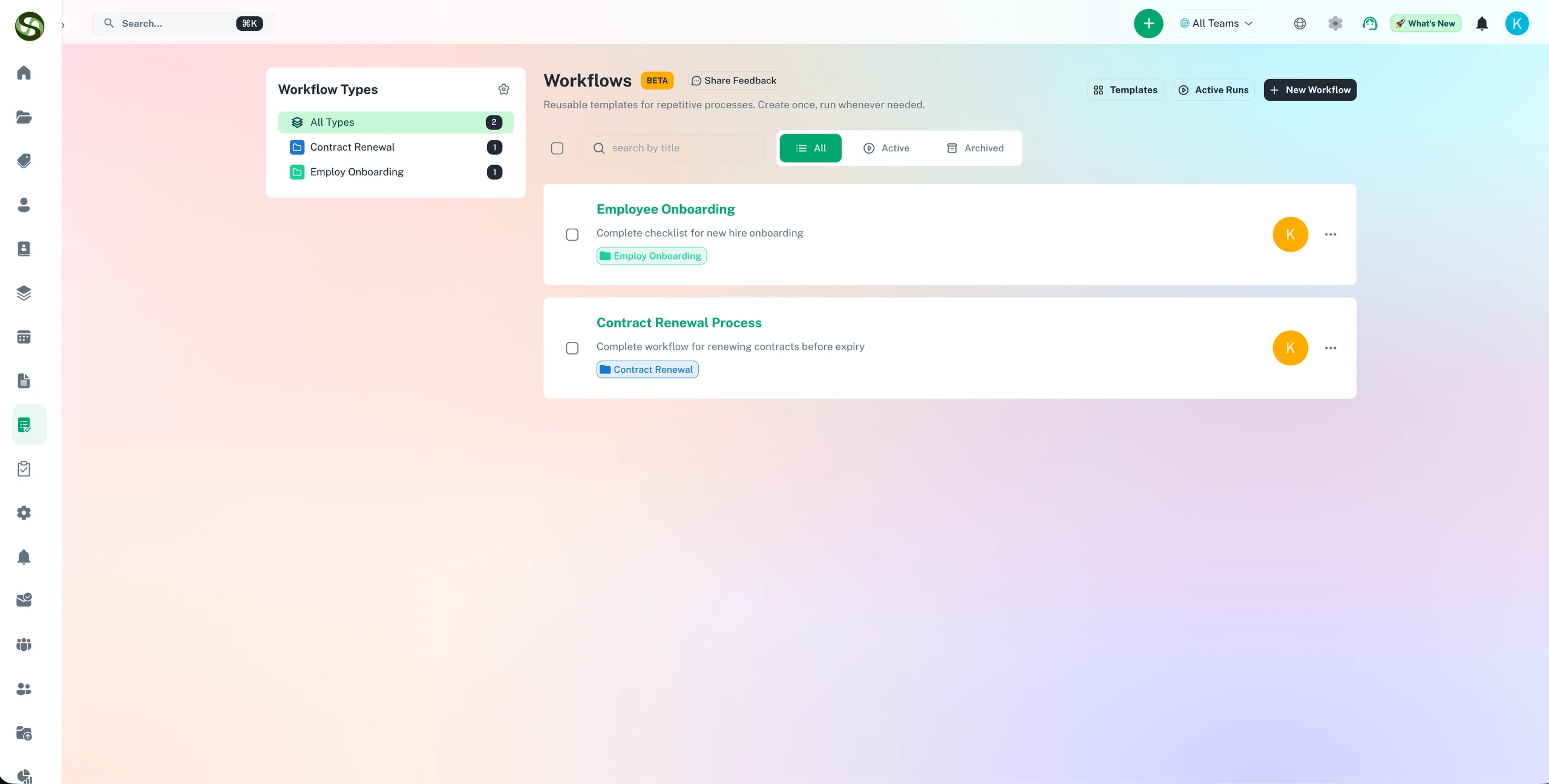
The workflow runs page shows all your active and completed runs:
- Filter by status: Active, completed, archived
- Search: Find specific runs by title or workflow name
- Sort: By due date, progress, start date, or name
- Quick actions: Open, complete, or archive from list view
👀 My Tasks View
See all workflow steps assigned to you across all runs:
- Consolidated view: All your tasks in one place
- Sort by priority: Focus on urgent items first
- One-click completion: Mark tasks done from this view
- Context: See which run each task belongs to
📊 Running Multiple Instances
You can have multiple runs of the same workflow happening simultaneously:
- Independent tracking: Each run tracks separately
- Example: Onboarding 3 new employees at once with 3 separate runs
- Different teams: Assign different people to each run
- Varied pace: Some runs may progress faster than others
Workflow Run Best Practices
✅ Do's
- Start with clear goals: Know what "done" looks like
- Assign early: Assign team members to steps at the start
- Check daily: Brief daily reviews keep runs on track
- Comment often: Document progress, issues, and decisions
- Mark complete promptly: Update steps as soon as finished
- Use @mentions: Get attention of specific team members
- Attach proof: Upload completion documents for audit trail
- Communicate blockers: Flag issues immediately
- Review before closing: Verify all work is truly complete
❌ Don'ts
- Don't mark incomplete work as done: Honesty keeps quality high
- Don't ignore assignments: Respond when tagged in steps
- Don't let runs go stale: Archive if abandoned, don't just leave active
- Don't skip completion notes: Future you will want this documentation
- Don't complete without verification: Check required steps are truly done
- Don't work silently: Update team on progress via comments
💡 Pro Tips
- Kickoff meeting: Brief team at start of each run
- Daily standup: Quick daily check-in on run status
- Mid-point review: Assess progress halfway through
- Retrospective: After completion, note what could improve
- Template feedback: Suggest improvements to workflow template
- Celebrate completion: Acknowledge team when run finishes
- Document variations: Note any process deviations for next time
Common Scenarios & Solutions
🚧 Scenario: Step is Blocked
Situation: You can't complete a step due to external dependency.
Solution: Add comment explaining the blocker. @mention person who can help. System tracks blocked time. Move to other steps if possible.
⏰ Scenario: Running Behind Schedule
Situation: Workflow run is progressing slower than expected.
Solution: Review remaining steps. Identify which are critical vs. nice-to-have. Assign more people if possible. Adjust due date if needed. Communicate status to stakeholders.
👤 Scenario: Team Member Unavailable
Situation: Assigned person is out sick or on leave.
Solution: Reassign their steps to someone else. Add comment explaining the change. Brief the new assignee on any context from previous comments.
📄 Scenario: Process Changed Mid-Run
Situation: Requirements changed after workflow run started.
Solution: Document changes in comments. Mark obsolete steps as complete with notes. Add comments for new requirements. Update workflow template for future runs.
✅ Scenario: Need to Verify Quality
Situation: Steps are marked complete but you need to verify quality.
Solution: Add a "Review & Approval" section at the end. Include verification steps. Assign to quality reviewer or manager. Uncheck and reassign if work needs correction.
Troubleshooting & FAQ
Q: Can I edit the workflow template during an active run?
A: Yes, but the active run won't be affected. It continues with the version it started with. Only new runs will use the updated template.
Q: What if I complete steps out of order?
A: That's fine! The system tracks completion but doesn't enforce order unless you've set specific dependencies. Complete steps as makes sense for your situation.
Q: Can I add steps to a run that aren't in the template?
A: Currently no. You can document additional work in comments, but new steps can't be added to active runs. Update the template for future runs.
Q: How do I see all runs of a specific workflow?
A: Go to the workflow's detail page. There you'll see statistics and a list of all runs based on that template.
Q: What happens if I don't complete a run by the due date?
A: The run remains active-there's no automatic expiration. You'll see "overdue" indicators, but you can continue working. Update the due date if the timeline changed.
Q: Can I reopen a completed run?
A: Yes, but it's not recommended. Use "Reopen" option if you must make changes. Better to note corrections in comments without changing completion status.
Q: How do I track time spent on workflow runs?
A: System tracks start and completion dates automatically. For detailed time tracking, add time spent in comments as you complete steps.
🎯 You're Ready to Execute!
You now have everything you need to run workflows effectively. Combine this knowledge with the other guides to master your expiry and workflow management!